


First steps
We recommend going through the tutorial How to get started with API - Basics 01, which teaches you about the API and how to set up the environment.
Connection file
This example is based on files created within the tutorial How to get started with API - Batch import of combinations 02.
Please download the files tutorial 02 with loads.ideaCon and tutorial 02.contemp to your PC.
Python client
Again, run the "IdeaStatiCa.ConnectionRestApi.exe" in CMD within the proper IDEA StatiCa folder and open the IDE tool of your choice.

- Create a new file and import the packages that will enable the use of calculation and link with the localhost URL.
Source code:
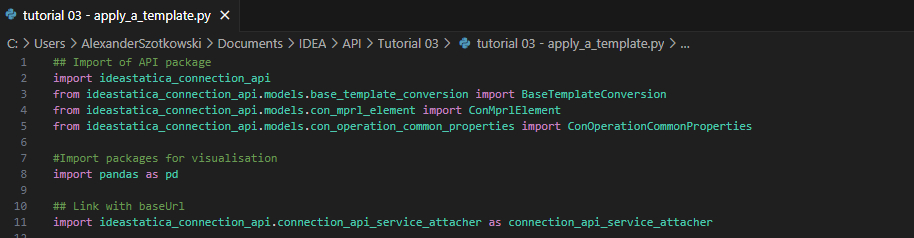
## Import of API package
import ideastatica_connection_api
from ideastatica_connection_api.models.base_template_conversion import BaseTemplateConversion
from ideastatica_connection_api.models.con_mprl_element import ConMprlElement
from ideastatica_connection_api.models.con_operation_common_properties import ConOperationCommonProperties
#Import packages for visualisation
import pandas as pd
## Link with baseUrl
import ideastatica_connection_api.connection_api_service_attacher as connection_api_service_attacher
- Configure the logging via the variable "baseUrl," which will pull up your localhost. In the second step, pair the absolute path of your IDEA StatiCa Connection file.
## Configure logging
baseUrl = "http://localhost:5000"
## Absolute path into folder with your python script and connection module
project_file_path = r"C:\Users\AlexanderSzotkowski\Documents\IDEA\API\Tutorial 03\tutorial 02 with loads.ideaCon"
print("Opening project ",project_file_path)

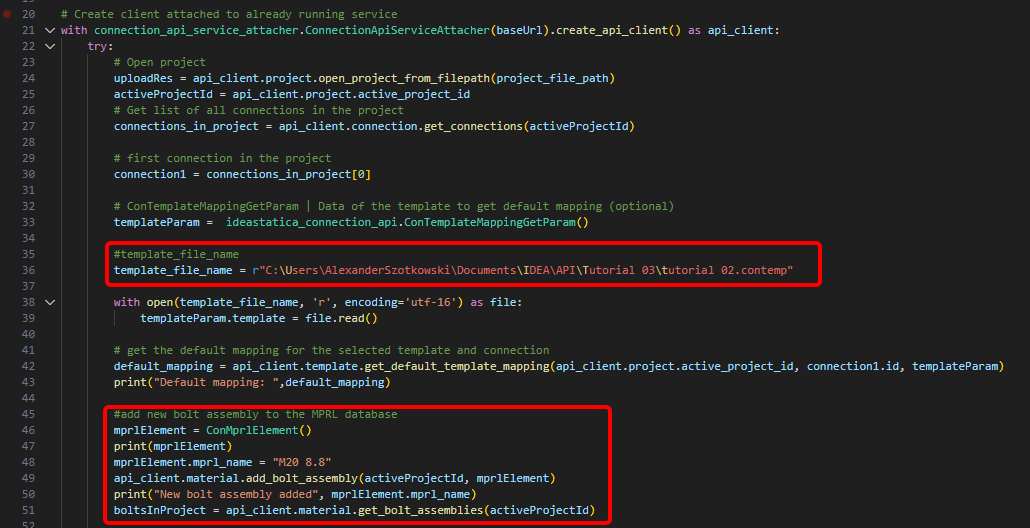
- Pair the client with an already running service. Use the block try/except - since the try block raises an error, the except block will be executed. In the first phase, it is necessary to open up the project and find the project ID of your project, which is unique for every IDEA StatiCa project. Then we need all the connections, stored in our file, as we want to apply the template only to the first one. As a next step, will can read the default mapping template file and add another bolt assembly (M20 8.8) to the MPRL database.
# Create a client attached to an already running service
with connection_api_service_attacher.ConnectionApiServiceAttacher(baseUrl).create_api_client() as api_client:
try:
# Open project
uploadRes = api_client.project.open_project_from_filepath(project_file_path)
activeProjectId = api_client.project.active_project_id
# Get list of all connections in the project
connections_in_project = api_client.connection.get_connections(activeProjectId)
# first connection in the project
connection1 = connections_in_project[0]
# ConTemplateMappingGetParam | Data of the template to get default mapping (optional)
templateParam = ideastatica_connection_api.ConTemplateMappingGetParam()
#template_file_name
template_file_name = r"C:\Users\AlexanderSzotkowski\Documents\IDEA\API\Tutorial 03\tutorial 02.contemp"
with open(template_file_name, 'r', encoding='utf-16') as file:
templateParam.template = file.read()
# get the default mapping for the selected template and connection
default_mapping = api_client.template.get_default_template_mapping(api_client.project.active_project_id, connection1.id, templateParam)
print("Default mapping: ",default_mapping)
#add new bolt assembly to the MPRL database
mprlElement = ConMprlElement()
print(mprlElement)
mprlElement.mprl_name = "M20 8.8"
api_client.material.add_bolt_assembly(activeProjectId, mprlElement)
print("New bolt assembly added", mprlElement.mprl_name)
boltsInProject = api_client.material.get_bolt_assemblies(activeProjectId)
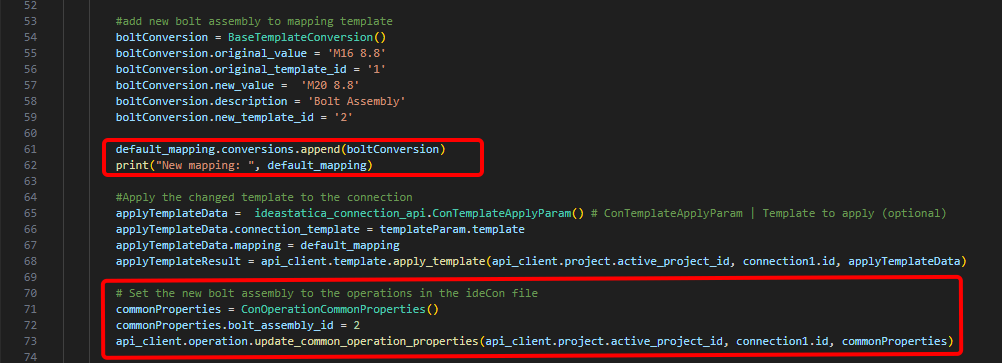
- If we want to assign the new bolt assembly to the operation Plate to plate directly, we have to run the command BaseTemplateConversion() and add it to the mapping template..
# add new bolt assembly to mapping template
boltConversion = BaseTemplateConversion()
boltConversion.original_value = 'M16 8.8'
boltConversion.original_template_id = '1'
boltConversion.new_value = 'M20 8.8'
boltConversion.description = 'Bolt Assembly'
boltConversion.new_template_id = '2'
default_mapping.conversions.append(boltConversion)
print("New mapping: ", default_mapping)
# Apply the changed template to the connection
applyTemplateData = ideastatica_connection_api.ConTemplateApplyParam() # ConTemplateApplyParam | Template to apply (optional)
applyTemplateData.connection_template = templateParam.template
applyTemplateData.mapping = default_mapping
applyTemplateResult = api_client.template.apply_template(api_client.project.active_project_id, connection1.id, applyTemplateData)
# Set the new bolt assembly to the operations in the ideaCon file
commonProperties = ConOperationCommonProperties()
commonProperties.bolt_assembly_id = 2
api_client.operation.update_common_operation_properties(api_client.project.active_project_id, connection1.id, commonProperties)
- We can also get the costs for the connection
# Get the costs of the connection with the applied template
costs = api_client.connection.get_production_cost(api_client.project.active_project_id, connection1.id)
print("Costs: ",costs.total_estimated_cost)

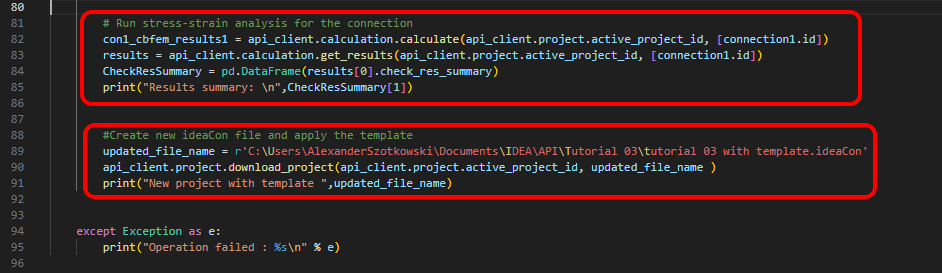
- As a last step, we can run the calculation, see the results store the file under a new name, and see the results
# Run stress-strain analysis for the connection
con1_cbfem_results1 = api_client.calculation.calculate(api_client.project.active_project_id, calcParams)
results = api_client.calculation.get_results(api_client.project.active_project_id, calcParams)
CheckResSummary = pd.DataFrame(results[0].check_res_summary)
print("Results summary: \n",CheckResSummary[1])
#Create new ideaCon file and apply the template
updated_file_name = r'C:\Users\AlexanderSzotkowski\Documents\IDEA\API\Tutorial 03\tutorial 03 with template.ideaCon'
api_client.project.download_project(api_client.project.active_project_id, updated_file_name )
print("New project with template ",updated_file_name)
except Exception as e:
print("Operation failed : %s\n" % e)
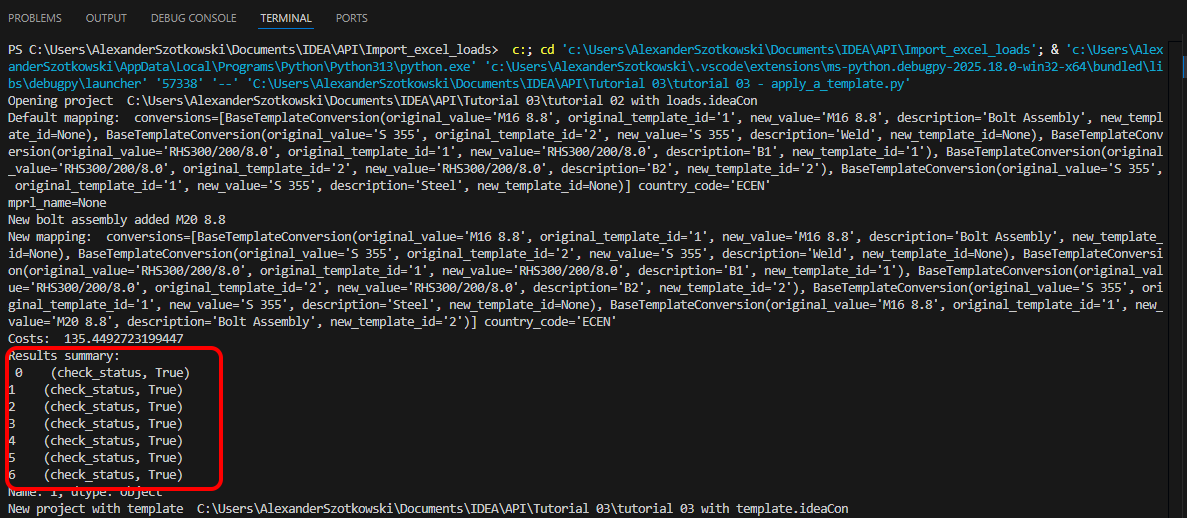
The results are OK. In the following tutorial, we will focus on optimising some of the components.