


You can either use the simple conversion tool (download) or use the open API through Python or C# with the provided code examples and prepare the conversion routine yourself.
You can convert the projects in any design code into these codes and subcodes/variants:
- AISC (USA)
- IS 800 (India)
- CSA (Canada)
- AS (Australia)
- GB (China)
- HKG (Hong Kong)
- SP (Russia)
Note: EN (Europe) is supported only as a source design code and not yet supported as the target design code.
IDEA StatiCa Connection Design Code Converter - the simple tool
With the IDEA StatiCa Connection Design Code Converter tool, you can change the design code of saved steel connection projects in one file or multiple files in bulk.
To run the tool, you need to have the ASP.NET Core installed on your computer (usually it's part of the Windows system and the .NET framework).
The tool uses the IDEA StatiCa API. The default path to the API is set to:
C:\Program Files\IDEA StatiCa\StatiCa 25.0\
You can change the path to the API when you install newer versions of IDEA StatiCa.
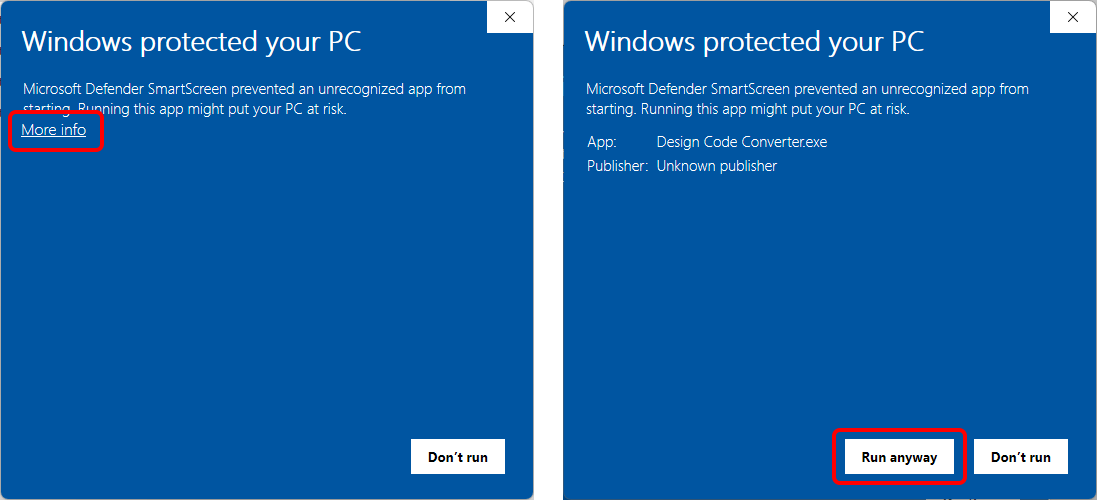
In case your Windows user settings don't let you run the .exe file, click More info and then Run anyway to open the tool, or ask your IT admin for help.
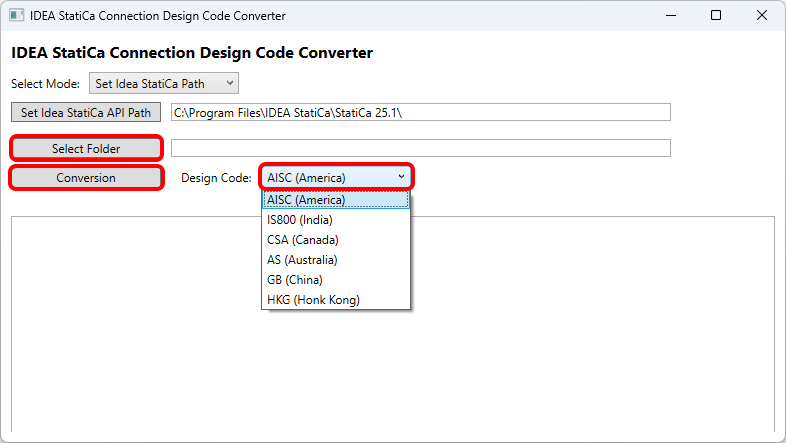
To convert your projects, click Select Folder containing your Connection files, choose the desired Design Code, and click Conversion.
The algorithm executes the transition, and a Custom Conversion Settings tab opens. Here you can manage the mapping of materials and cross-sections. When finished, confirm by clicking OK.
You can input any material from your MPRL (Material and Product Range Library), which means materials and cross-sections from libraries belonging to the appropriate code, as well as the user-defined materials and cross-sections.
All materials and cross-sections can be later changed manually in the Connection app as well.
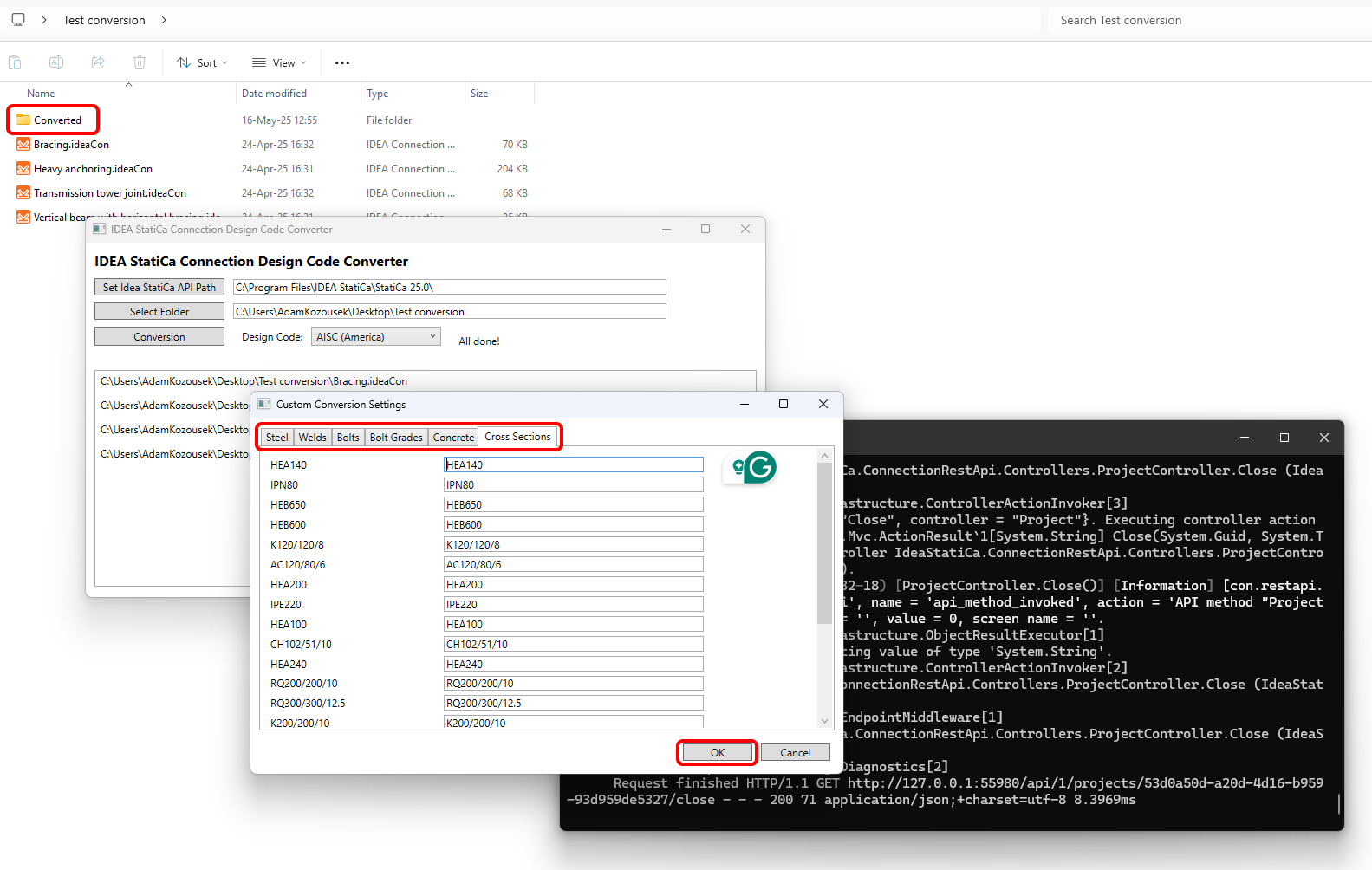
The converted files are saved in a subfolder (within the selected folder) named Converted, and the suffix of the new code is appended to the file names.
Open API conversion using Python and C#
Download and edit the prepared code examples from the GitHub repository to build your own conversion tool:
The API is open, and broad options are available for converting single or multiple Connection project files into different design codes and national standards.
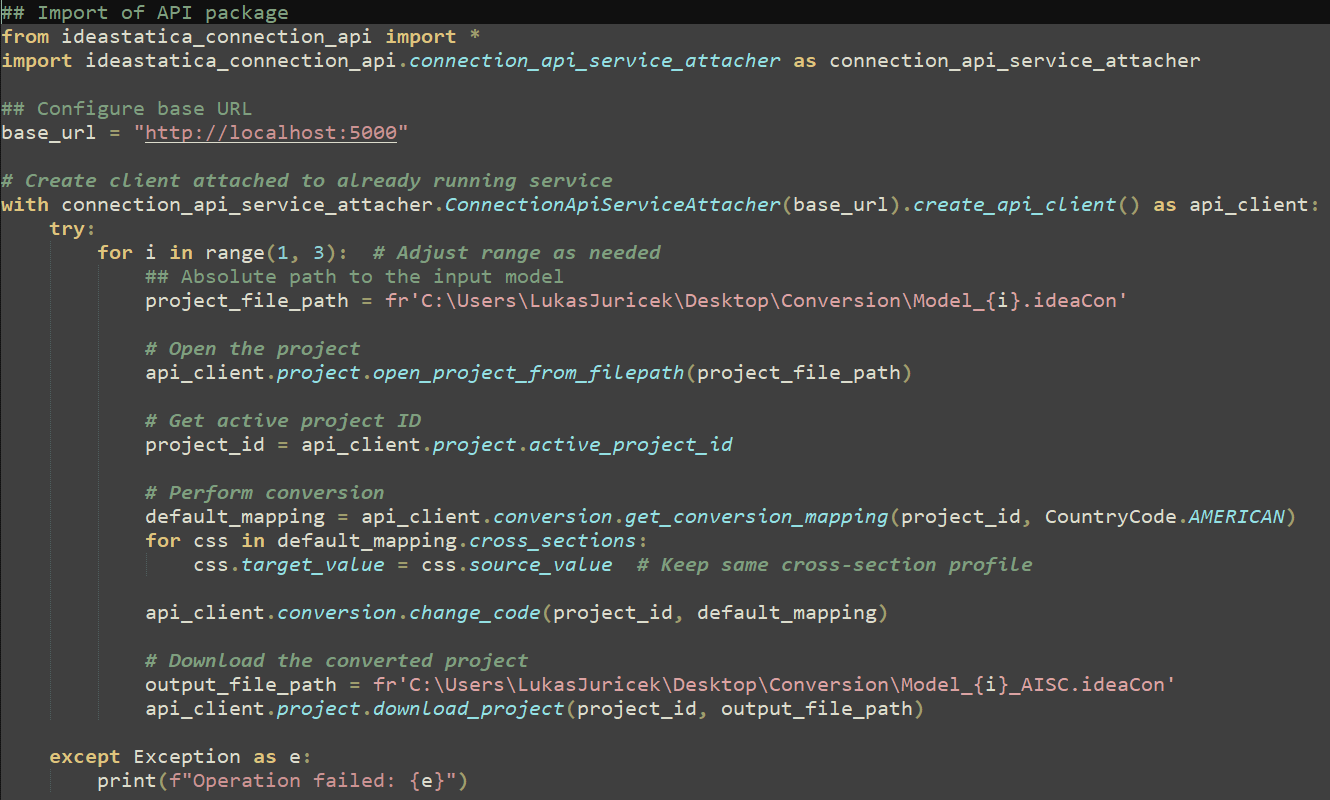
Watch the video tutorial on how to convert Connection projects using the API and Python programming:
The conversion is available in IDEA StatiCa 25.0 and newer.
Known limitations
- Pins are not supported. To make the conversion of projects with pins possible, change pins to bolts and delete pins also in the Materials tab.
- The Connection Design Code Converter tool should not be "Run as administrator"; otherwise, the API would not start, and the conversion would fail. The workaround steps are:
- Manually run the API using the file IdeaStatiCa.ConnectionRestApi.exe from the IDEA StatiCa installation folder
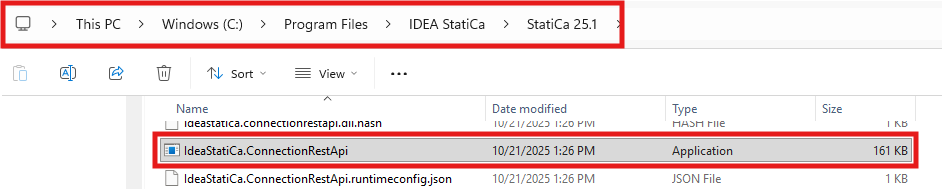
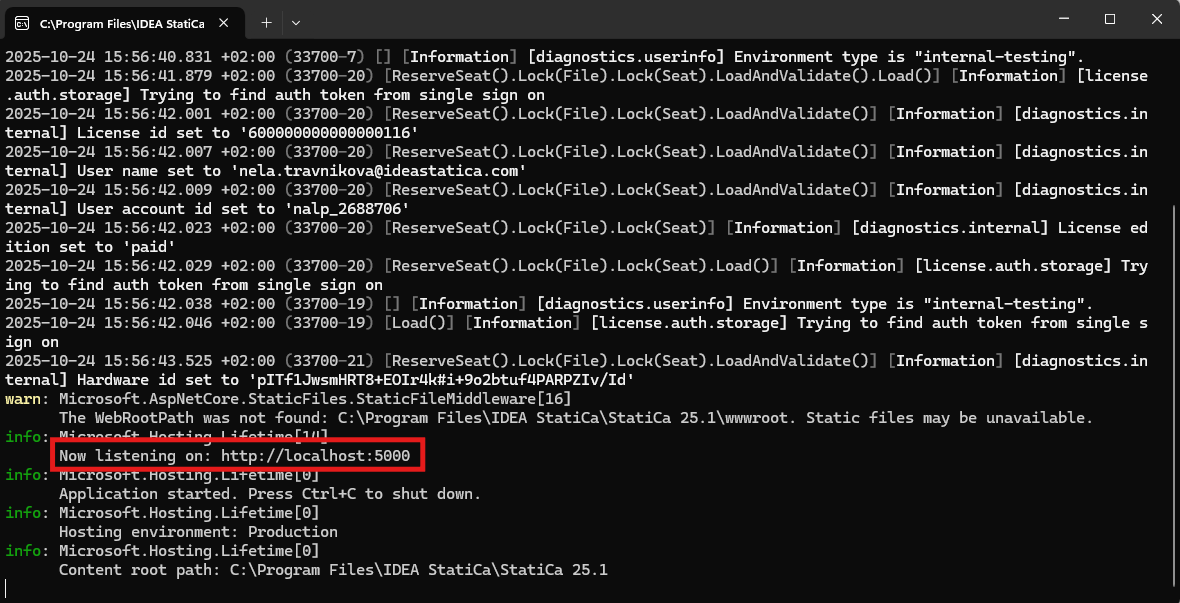
- Check the URL address of the API service (http://localhost:5000)
- Open the Connection Design Code Converter tool, select Set API URL address, and check/input the URL address from the previous step
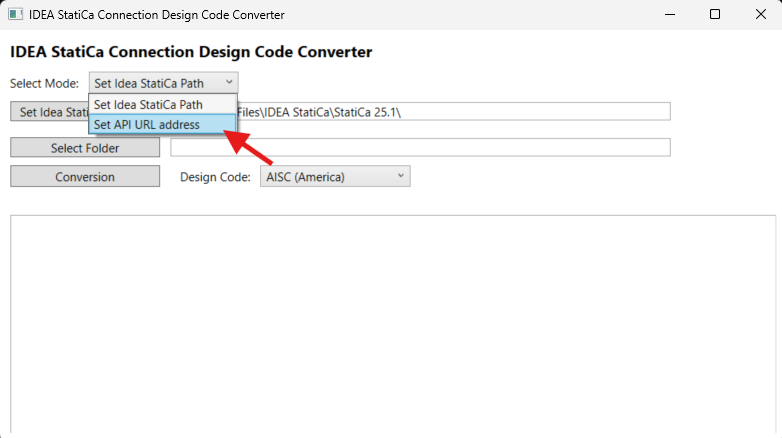
- Click Attach to running service
- Continue using the Connection Design Code Converter tool in standard mode as described earlier in this article