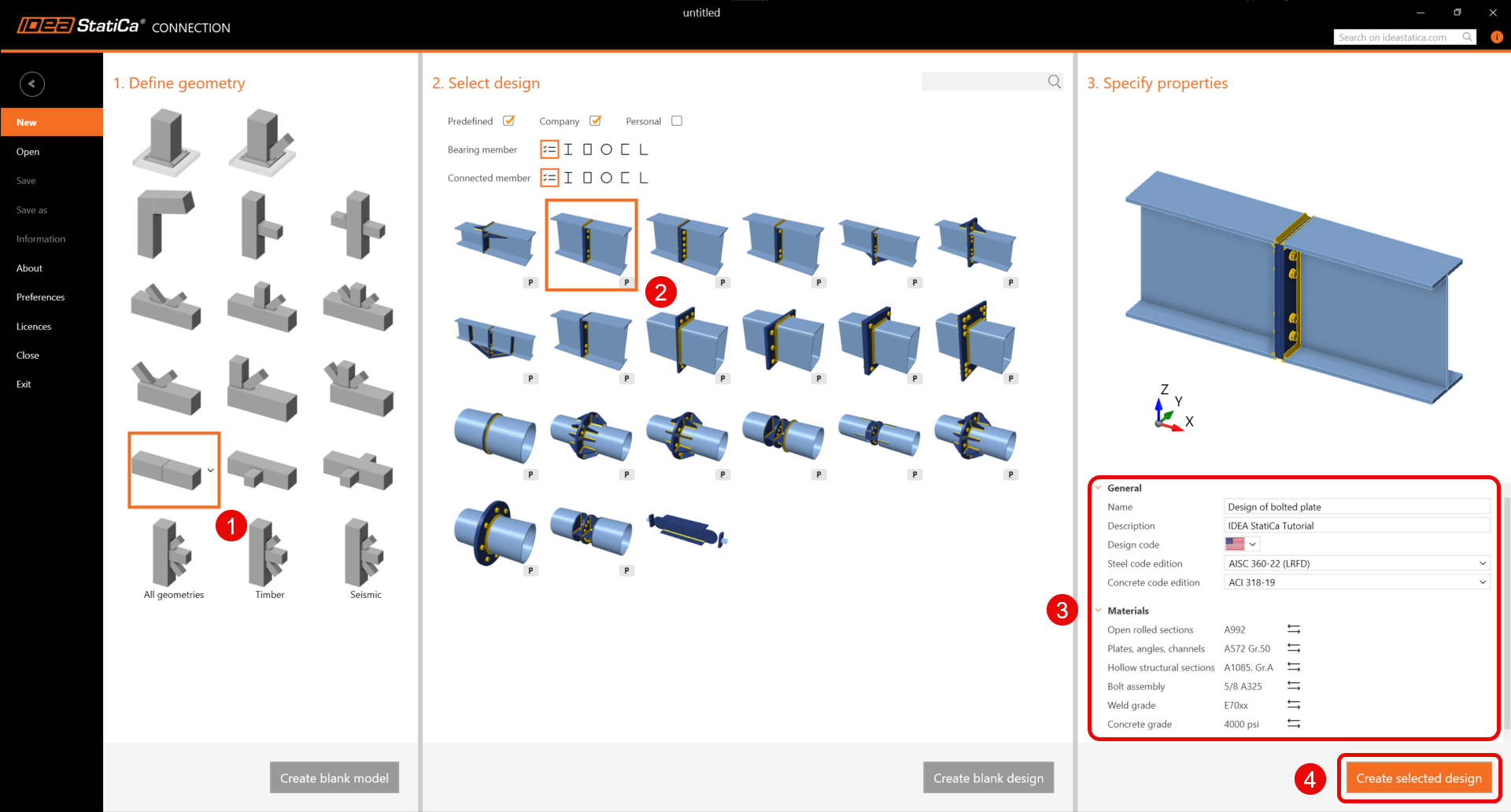
1 New project
Start with launching the IDEA StatiCa Connection. Create a new project by selecting the template closest to the required design, fill the name and the description of the project. After choosing the required properties, confirm by Create project.
Since you work under the AISC code, set the imperial units (see How to change the system of units).
2 Geometry
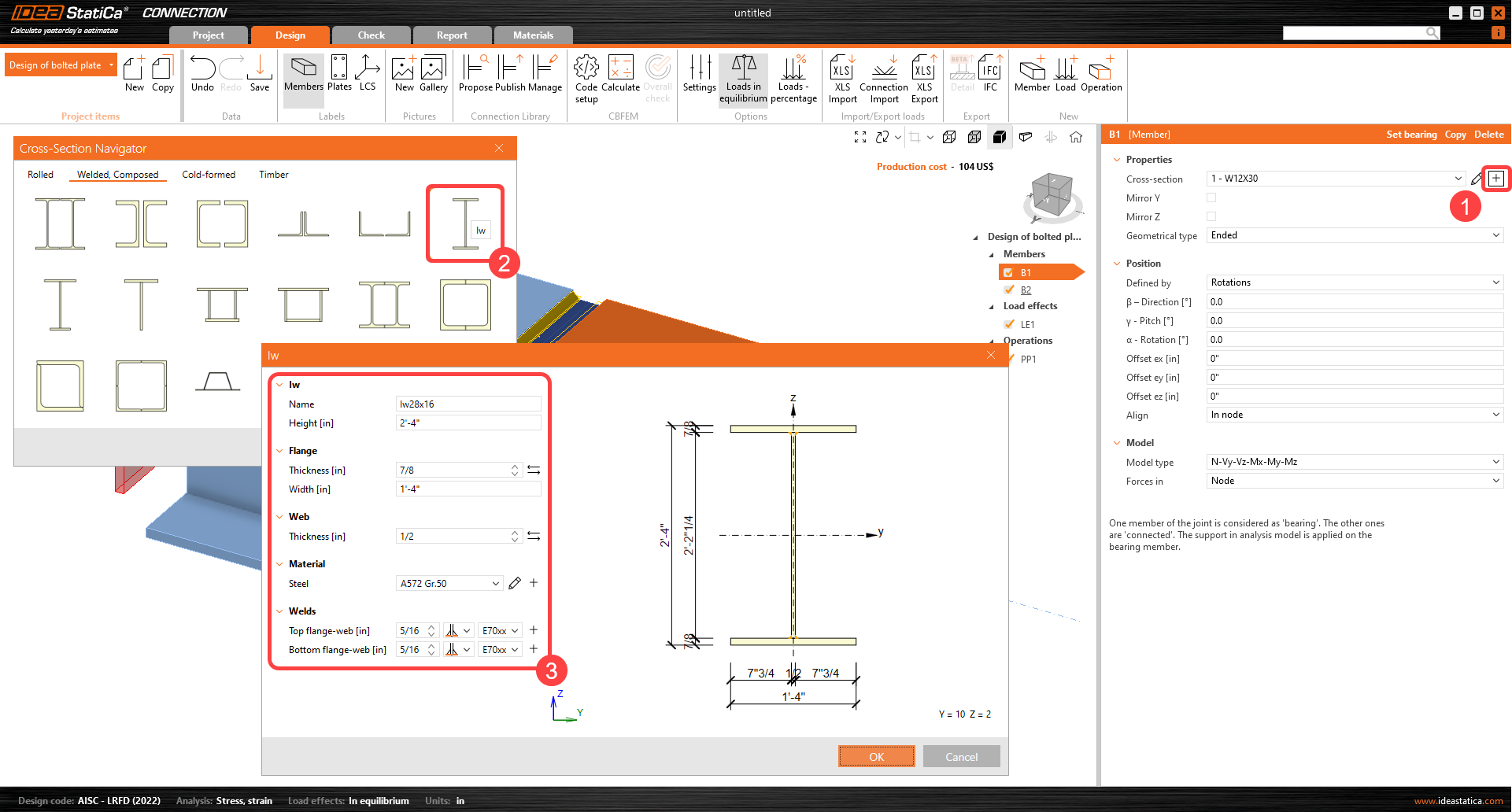
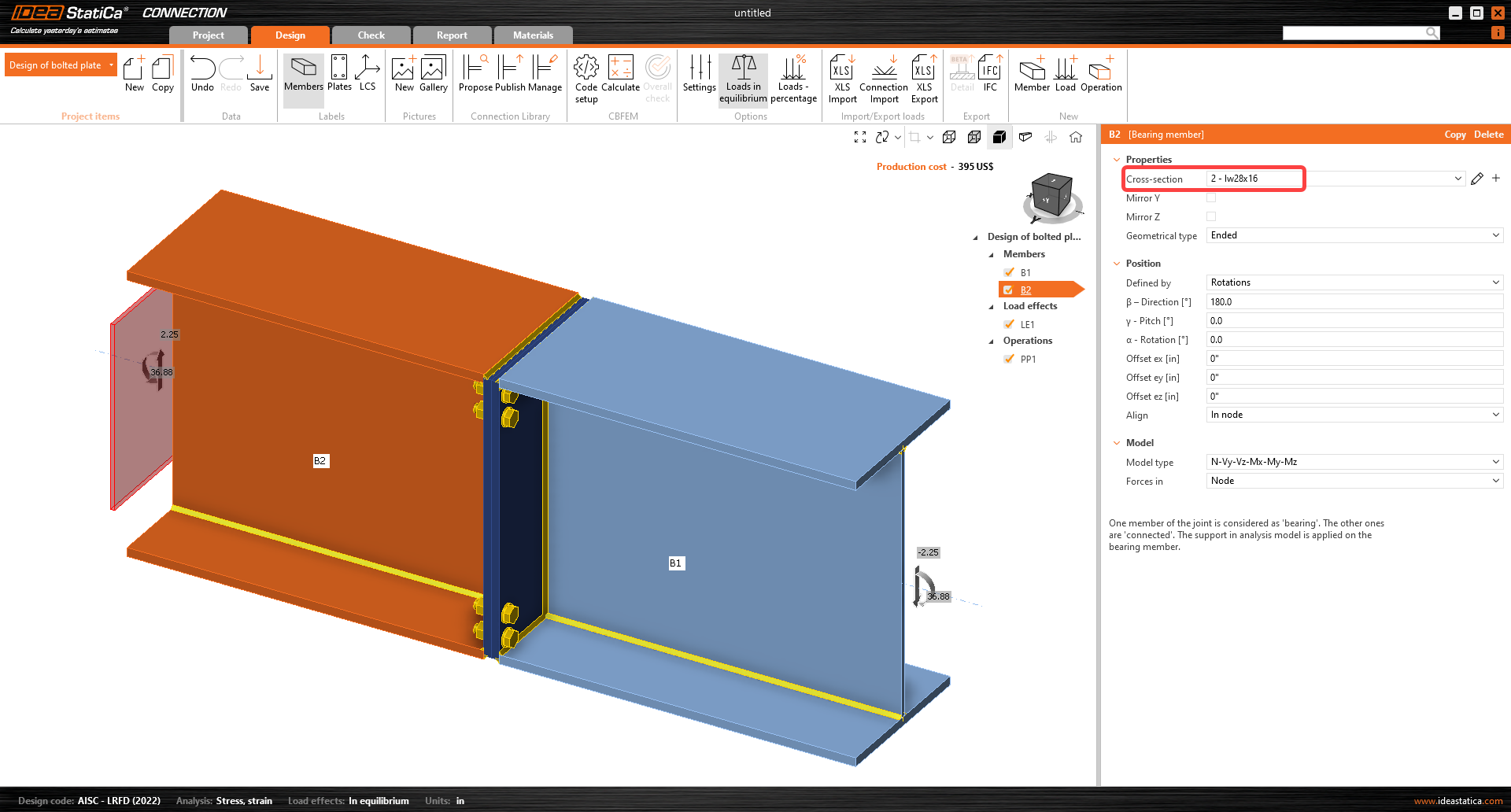
Two beams were automatically added. Change the cross-section of member B1 to a welded “I section” and define the cross-section dimensions (height, flange thickness and width, thickness of the web, fillet welds between the plates).
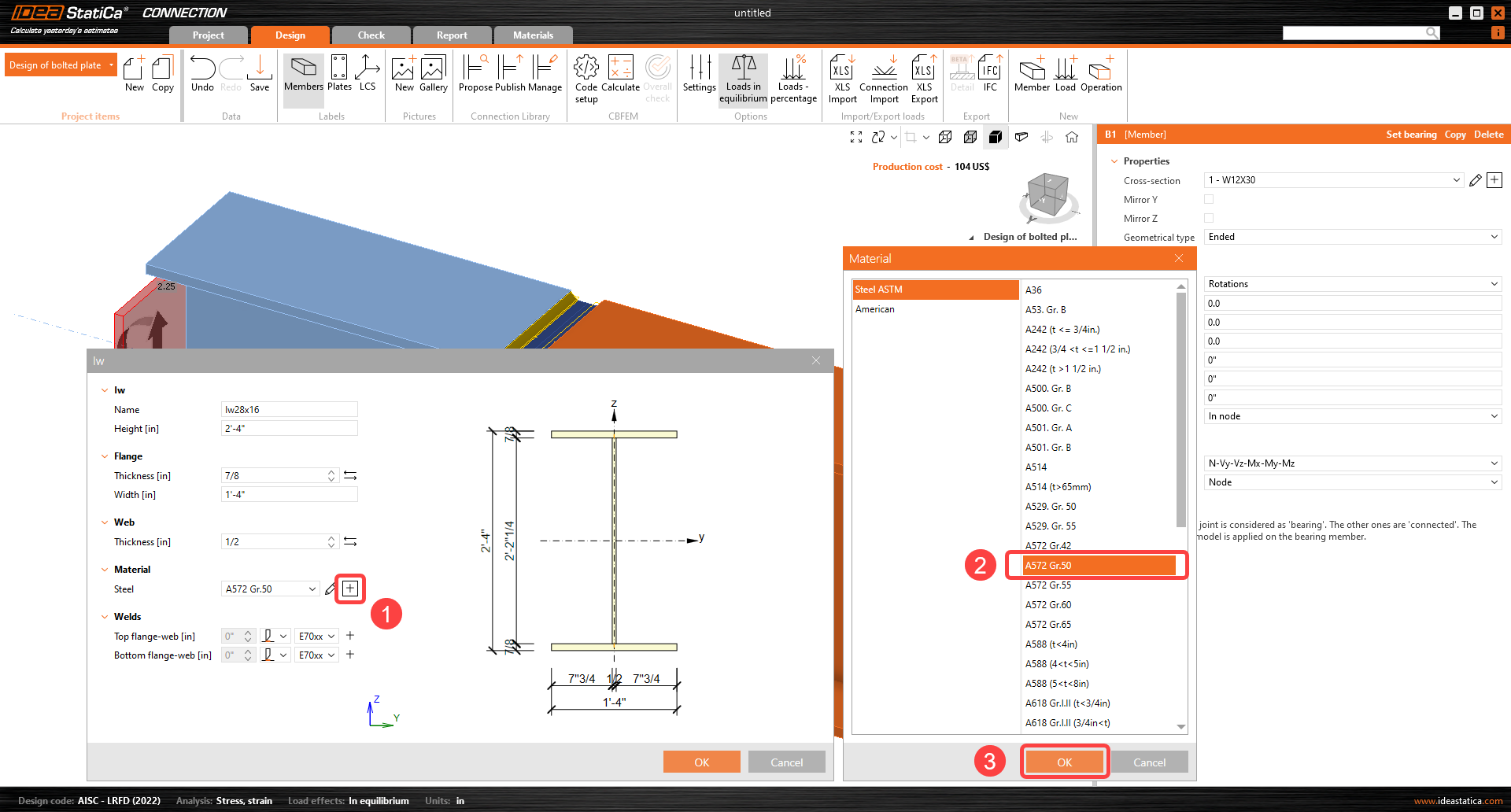
Steel material for the new cross-section:
Then for member B2, set the same cross-section from the drop-down menu.
3 Load effects
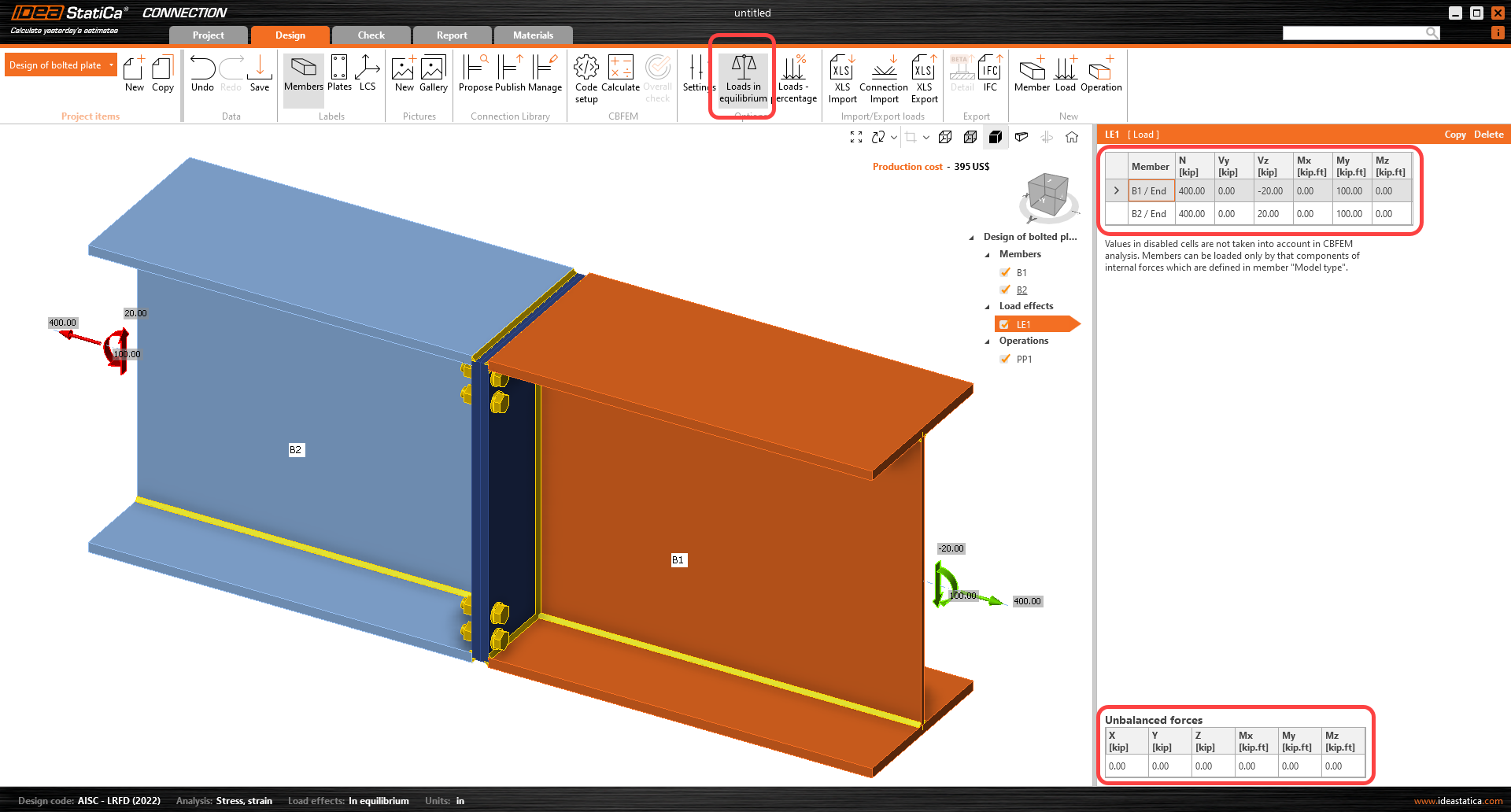
Continue with the Load effects. One load effect was automatically added. Loads in equilibrium option is active. Input the values of internal forces into the chart. More load cases can be added.
4 Design
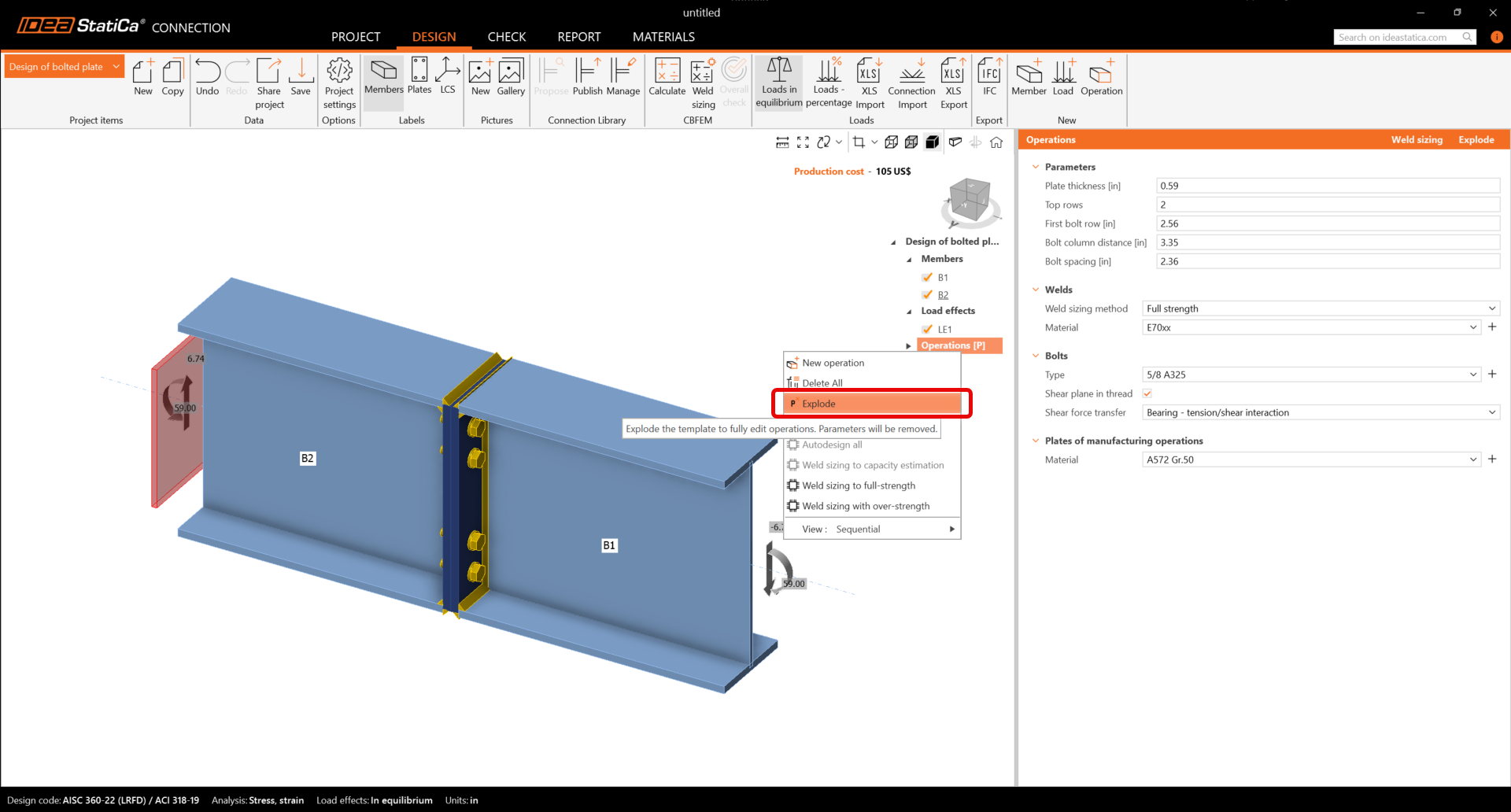
Before modifying the connection, Right-click on Operations (P) and select "Explode".
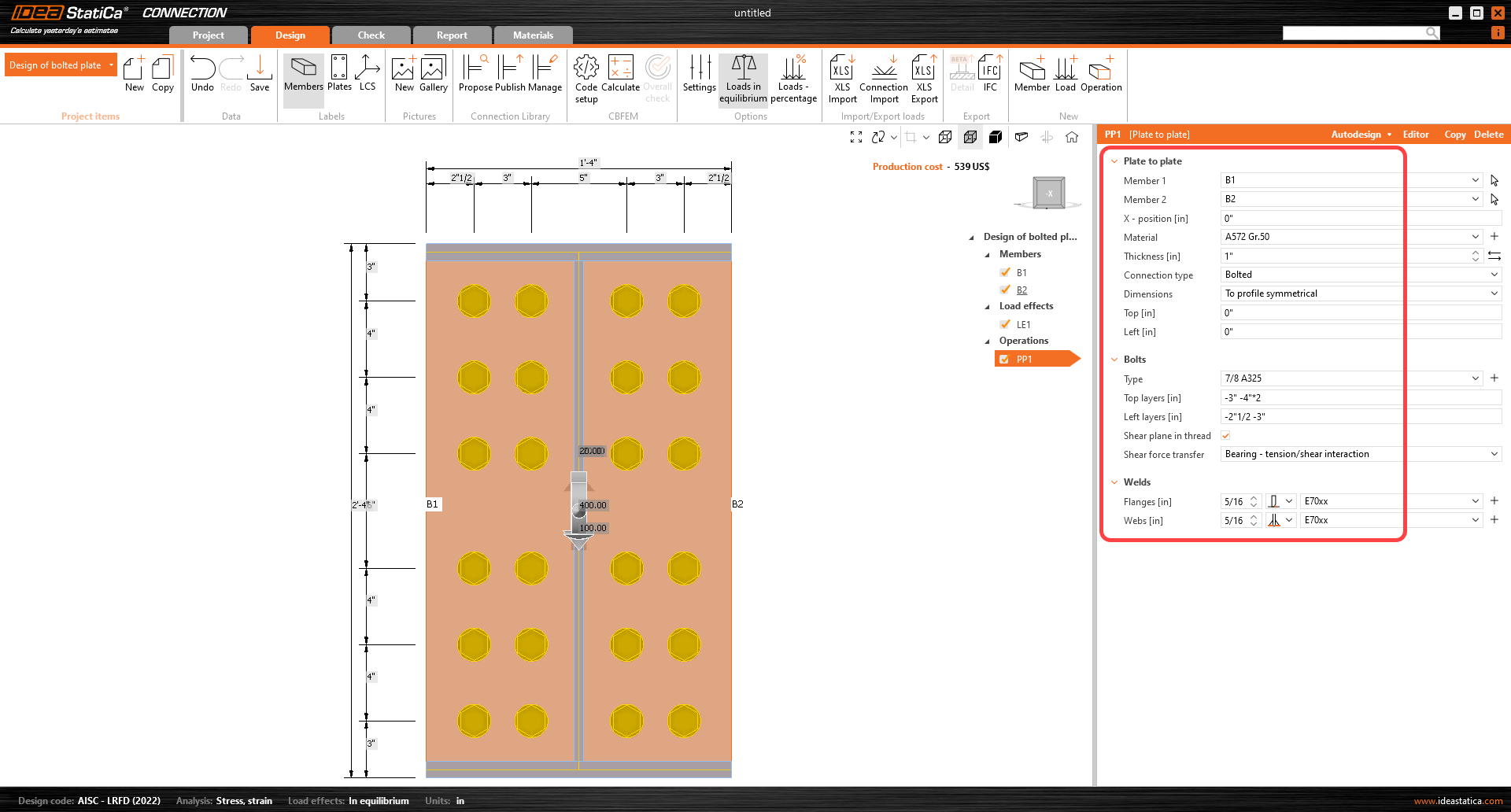
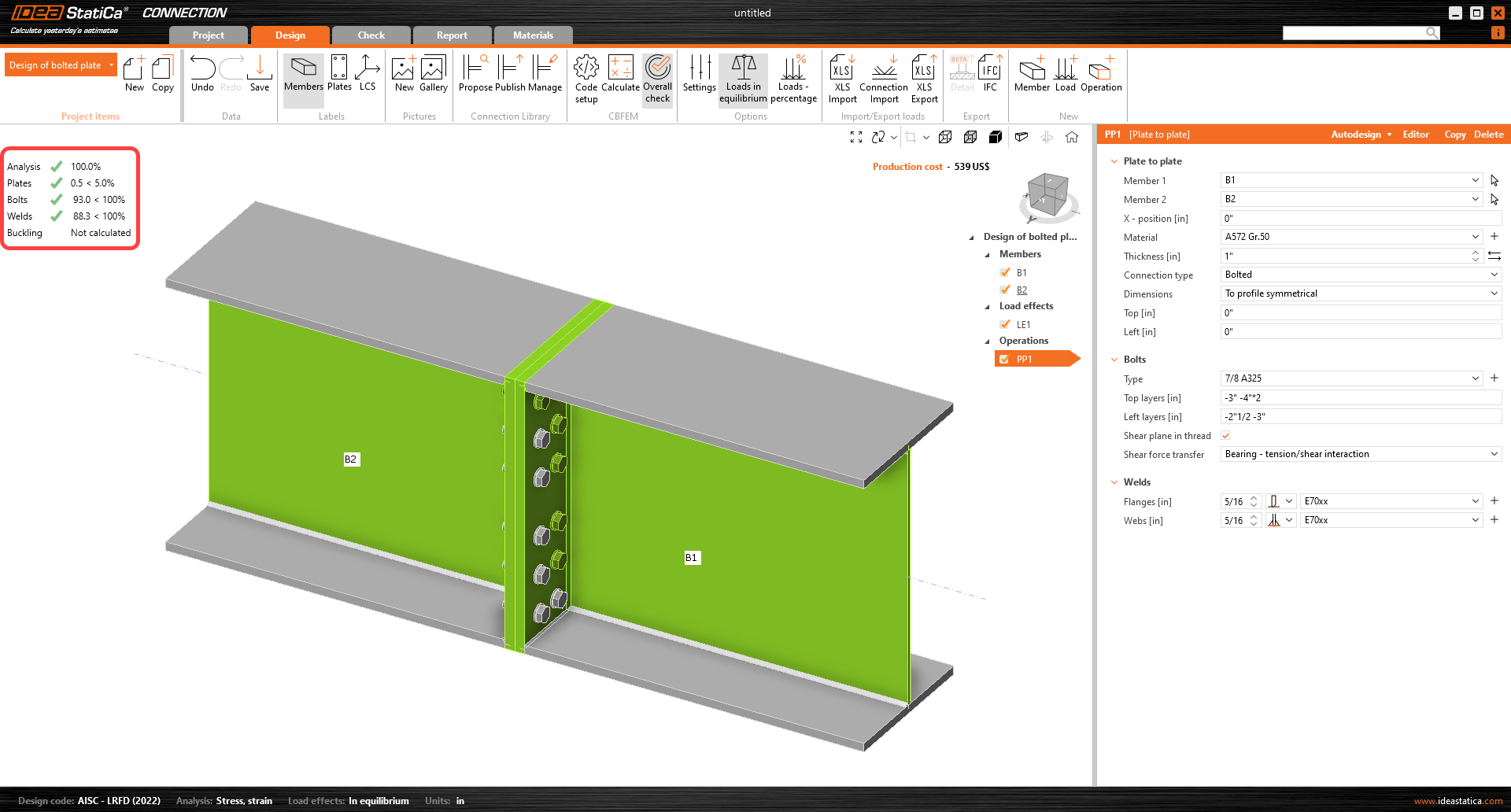
Manufacturing operation “Plate to plate” was automatically added. Modify its geometrical parameters, change the bolt properties and weld properties. Ensure that the web has double sided fillet weld, while the flanges have PJP welds. More operations can be added.
5 Calculation and Check
Start the analysis by clicking Calculate in the ribbon. The analysis model is automatically generated, the calculation based on CBFEM is performed, and we can see the Overall check displayed together with basic values of check results.
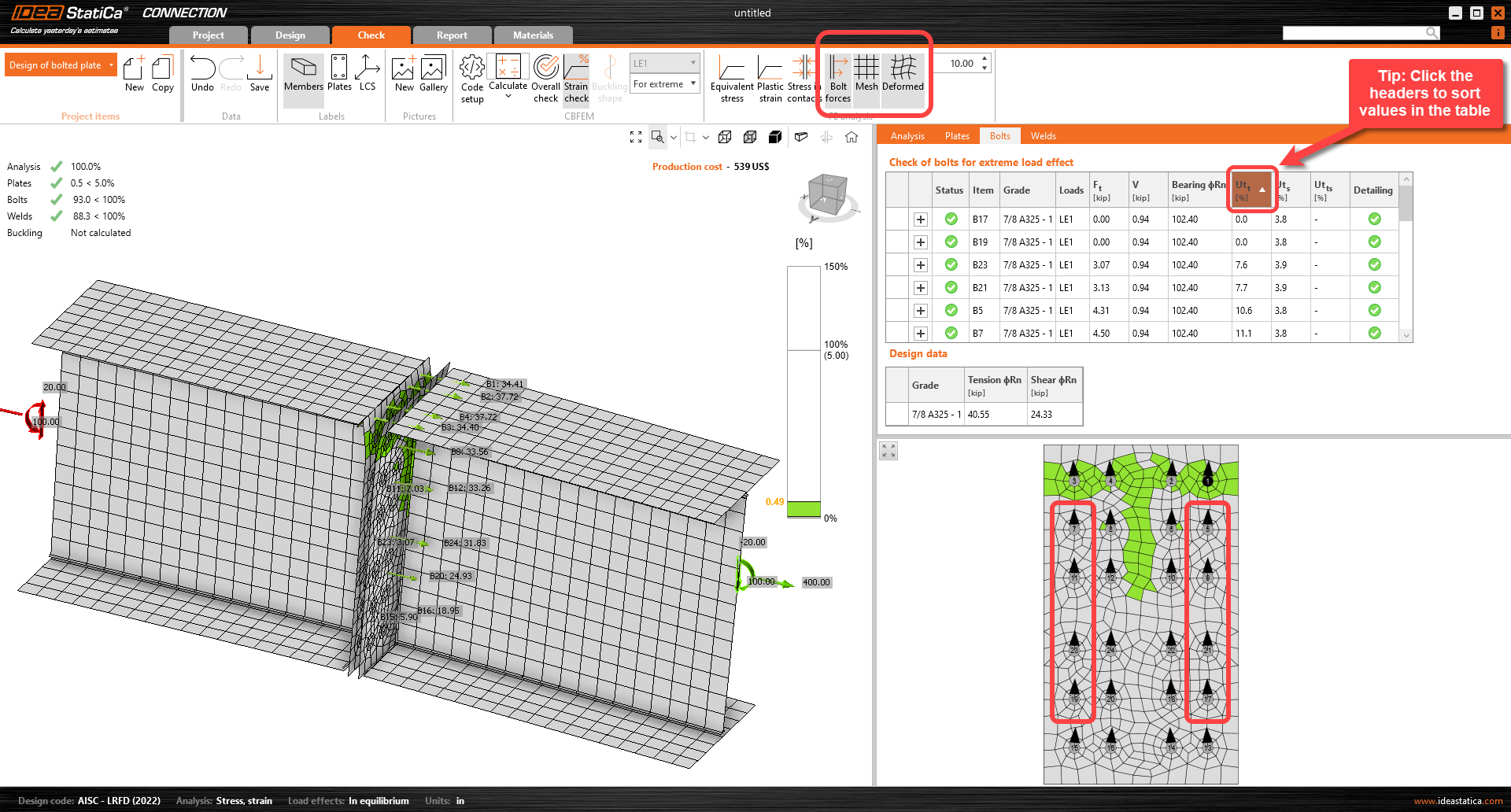
Go to the display tab Check, and there activate Strain check, Bolt forces, Mesh and Deformed from the ribbon to get a full picture of what is happening in the joint. Open the tab Bolts to see that there are some bolts with very low utilization.
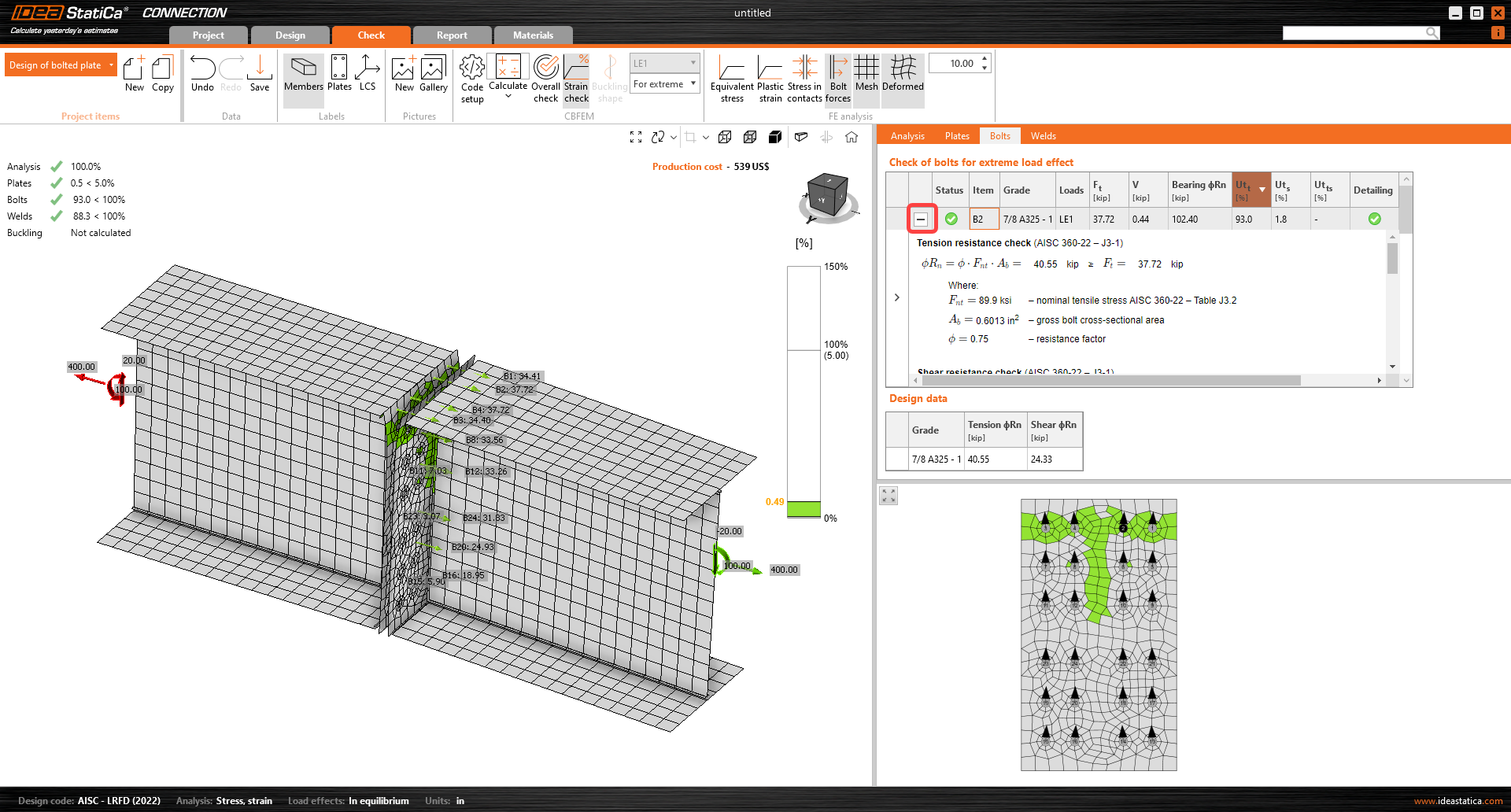
You can look at the bolt code-check equations in the expanded menu.
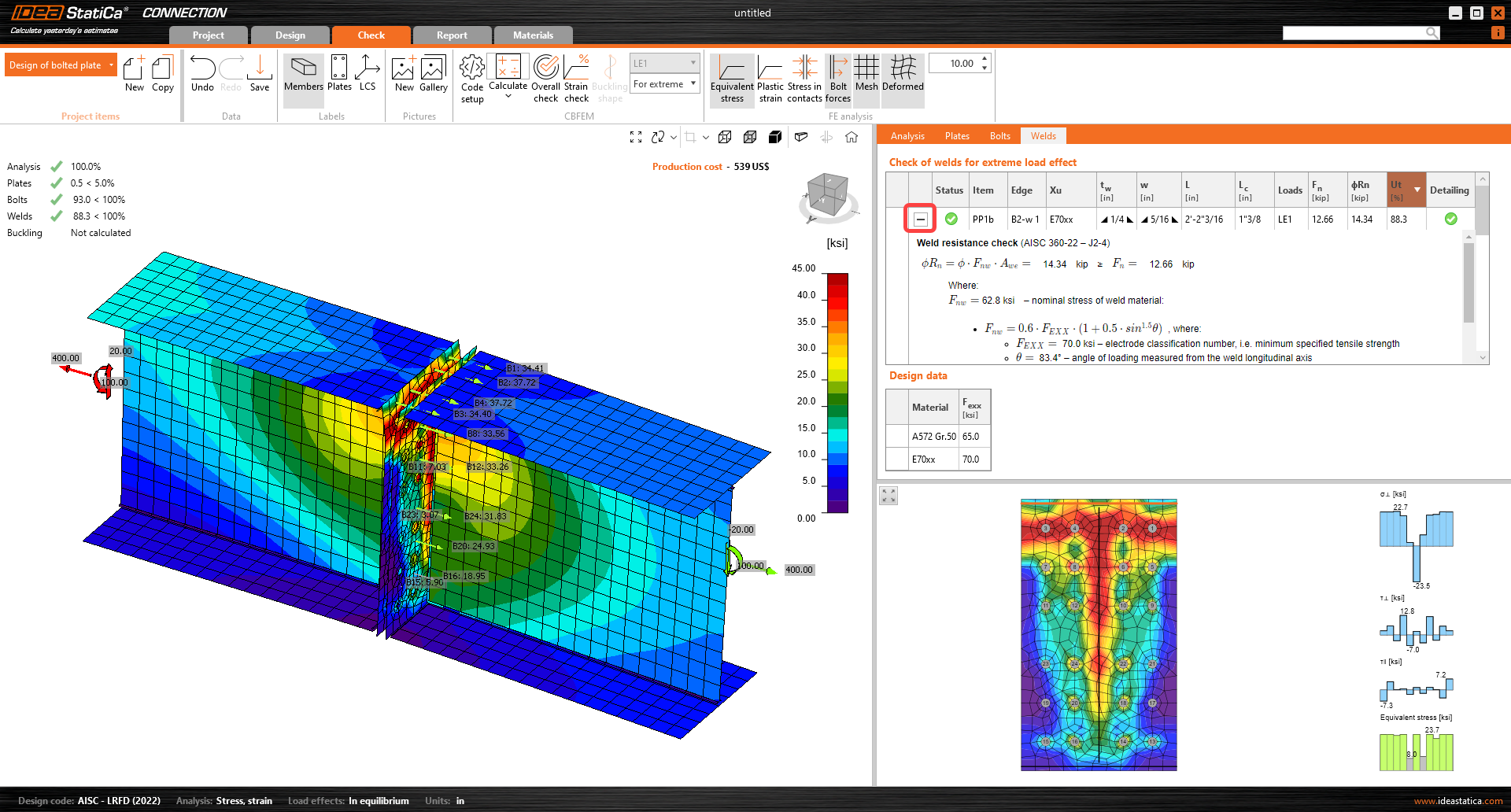
Review the weld tab and review the code calculations of welds:
6 Optimization
IDEA StatiCa Connection provides an easy way of joint design optimization. It was pointed out that the utilization ratio of some bolts is almost zero. You can remove them and make the design more economical.
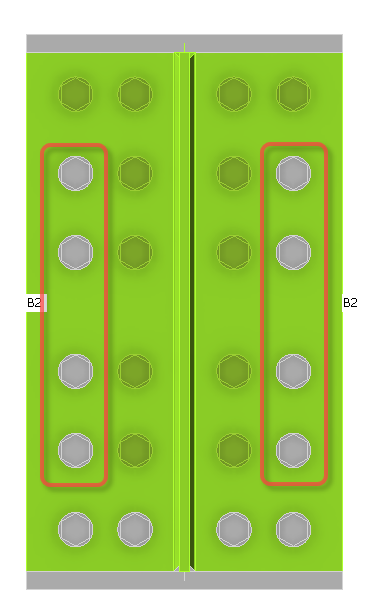
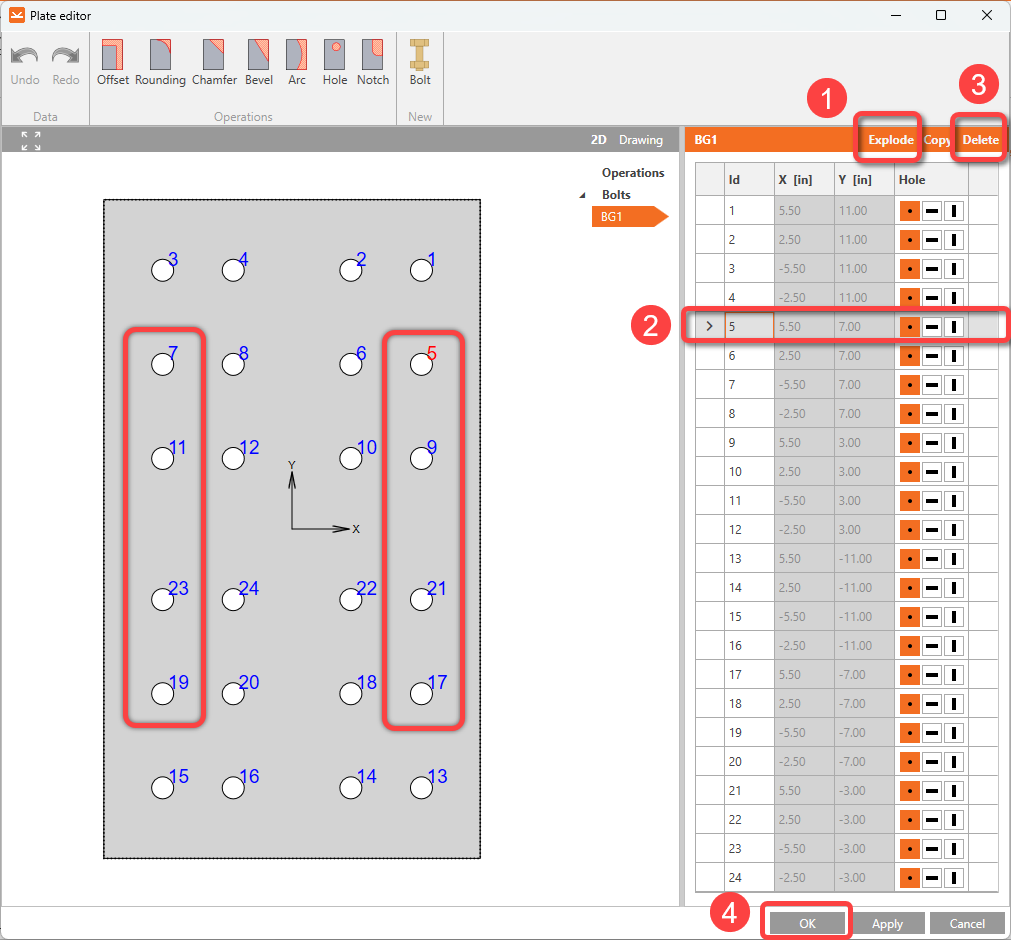
Right-click on the connecting plate and select Editor. Click Explode. Choose and remove bolts 5, 7, 9, 11, 17, 19, 21 and 23 by clicking Delete. Repeat the process until you delete the mentioned bolts and finally click Apply and OK.
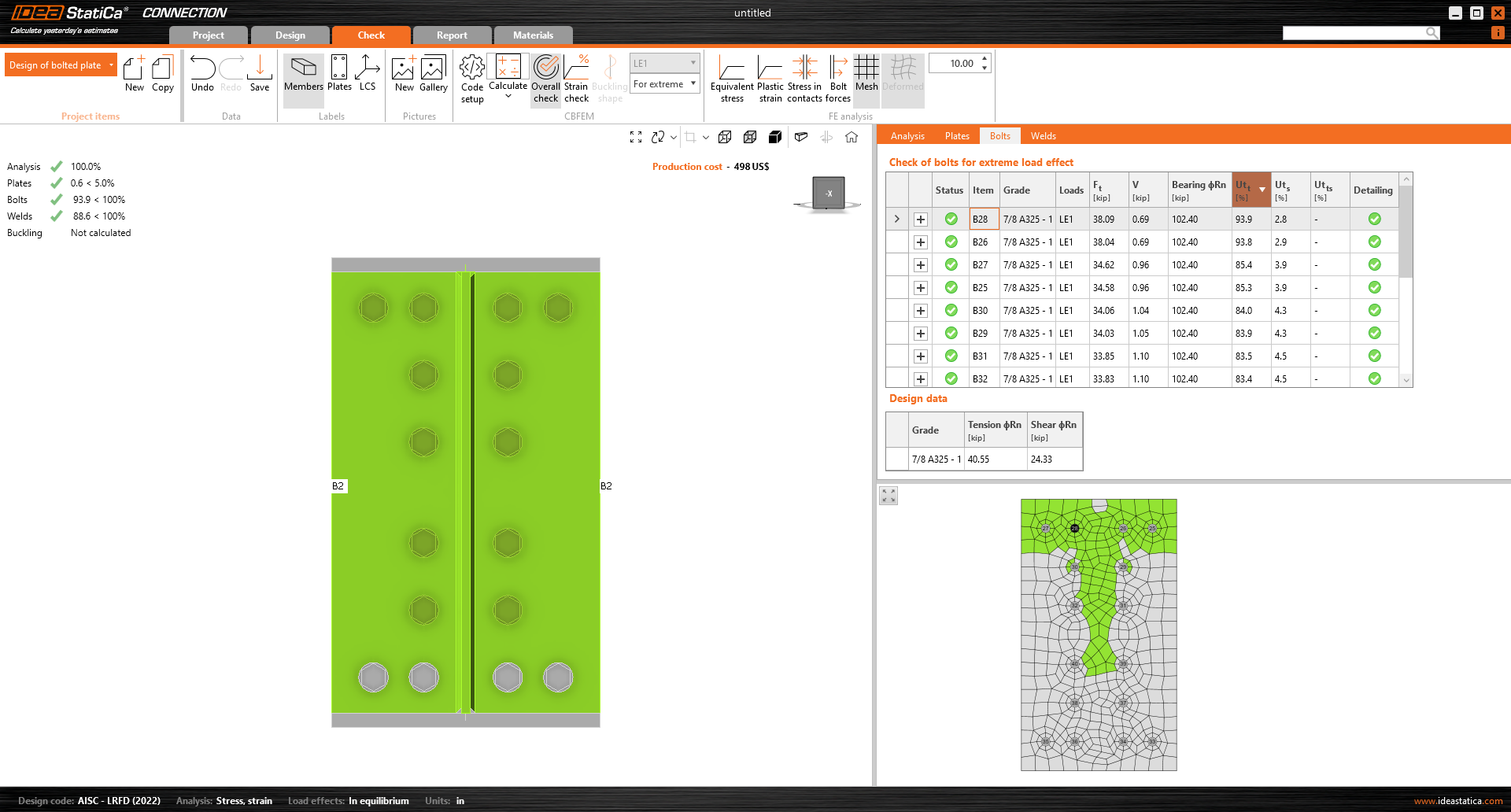
Then, run the Calculation again and check the updated results. The new design passes all the checks, and we saved 1/3 of the originally designed bolts.
7 Report
To include a section view with details of the connection, right-click over the plate and select Create section:
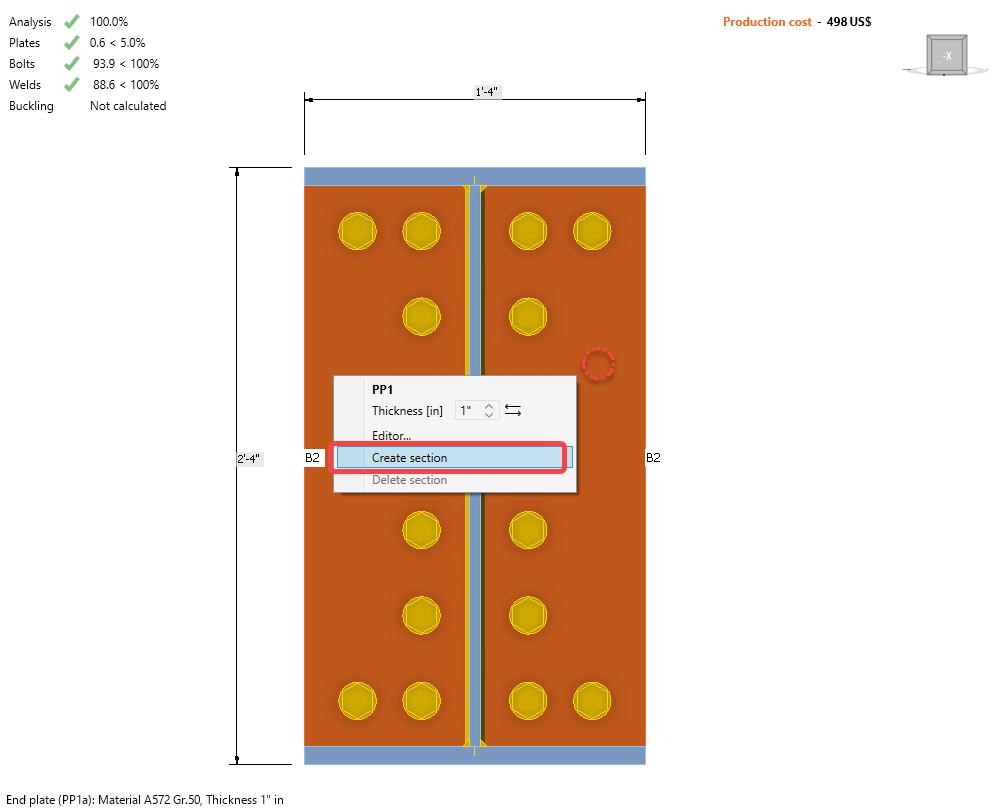
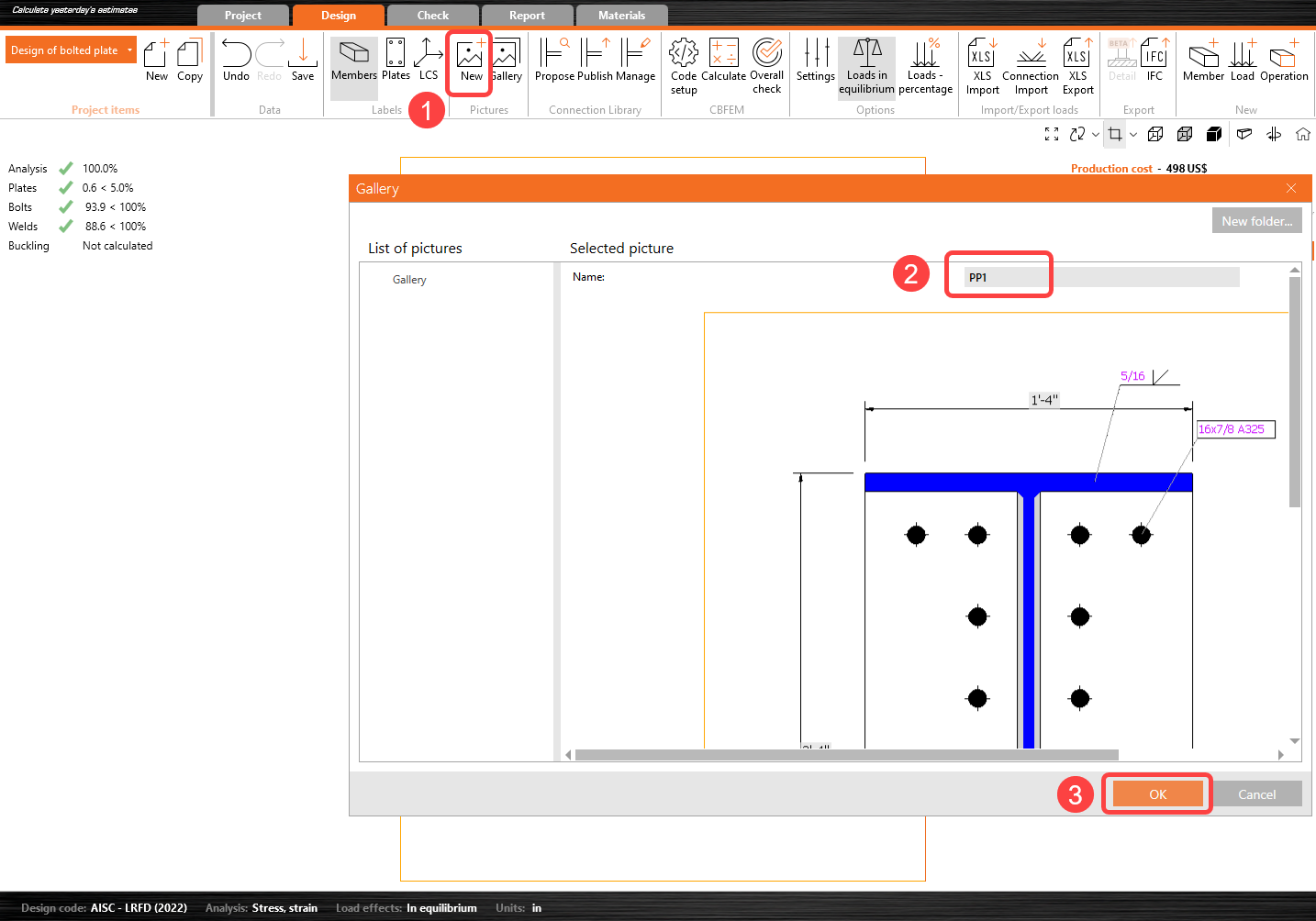
Then click on New Picture, modify the name, and click OK.
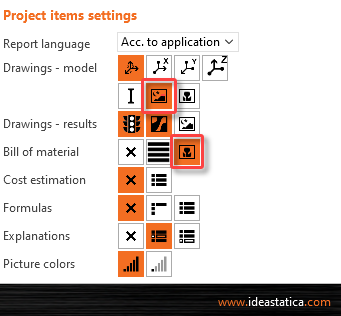
At last, go to the tab Report. IDEA StatiCa offers a fully customizable report to print out or save in an editable format. To include the section picture select the next icon and Bill of materials to generate a drawing of the plate-to-plate detail:
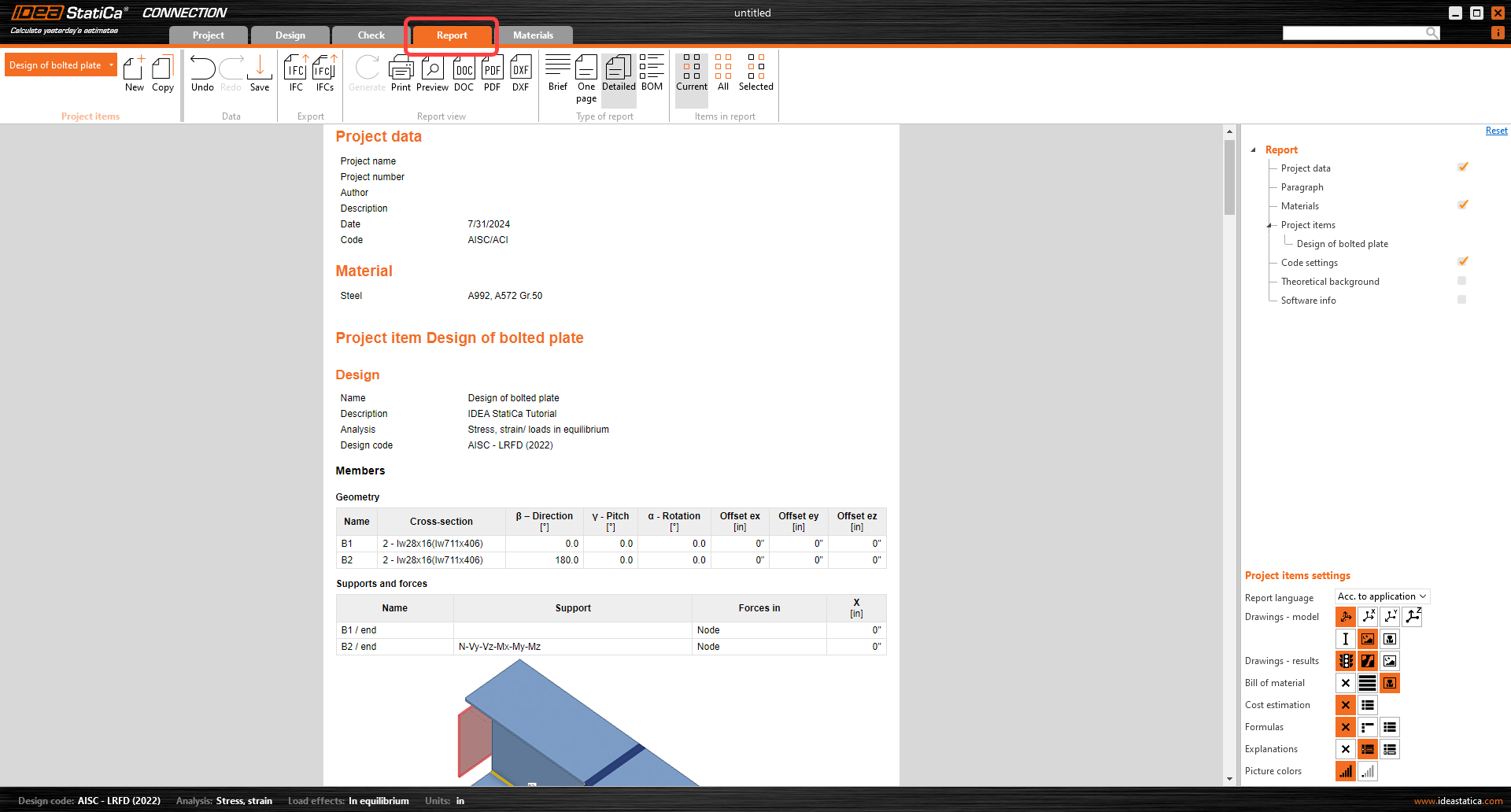
Click on the Generate to create the detailed report:

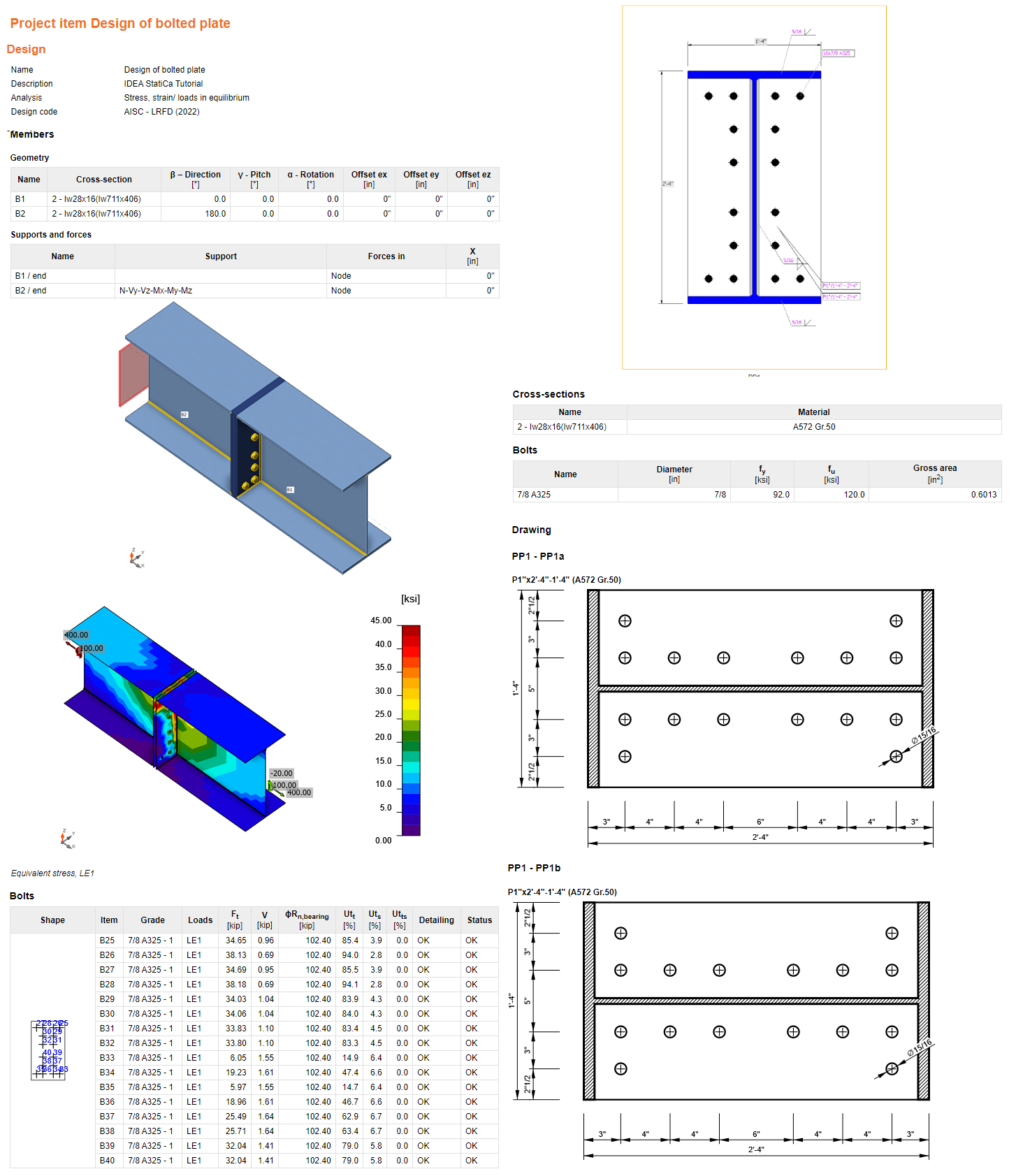
You have designed, optimized, and code-checked a structural steel joint according to AISC.
Learn how to use IDEA StatiCa effectively with our self-paced e-learning courses
Start learning