Idea Statica
Steel
Steel overview
Connection design
Member design
Parametric design
Steel case studies
Concrete
Concrete overview
Walls and D-regions
Anchoring design
Concrete case studies
BIM & Workflows
BIM Overview
Supported integrations
Checkbot
Viewer
APIs
Support & Learning
Support Center
E-learning & certification
Blog
Downloads & Licensing
Pricing
Plans
Free community tool
Enterprise customers
Students & educators
How much will you save?
Company
About us
Contact
Research & development
Authorized resellers
Meet our customers
14-Day Trial
Support CenterTutorialsStructural design of a footing with diagonal (AISC)
Step-by-step tutorial for the structural design of steel connection of a footing with diagonal. Structural design of welded and bolted steel connections.
SteelConnection designTutorialsAISC (USA)Connection

Structural design of a footing with diagonal (AISC)

This article is also available in
ENCSDEESFRITPTNLHURO

Learn how to use IDEA StatiCa Connection to design and code-check a structural steel joint, an example is a column footing with diagonal.

1 New project

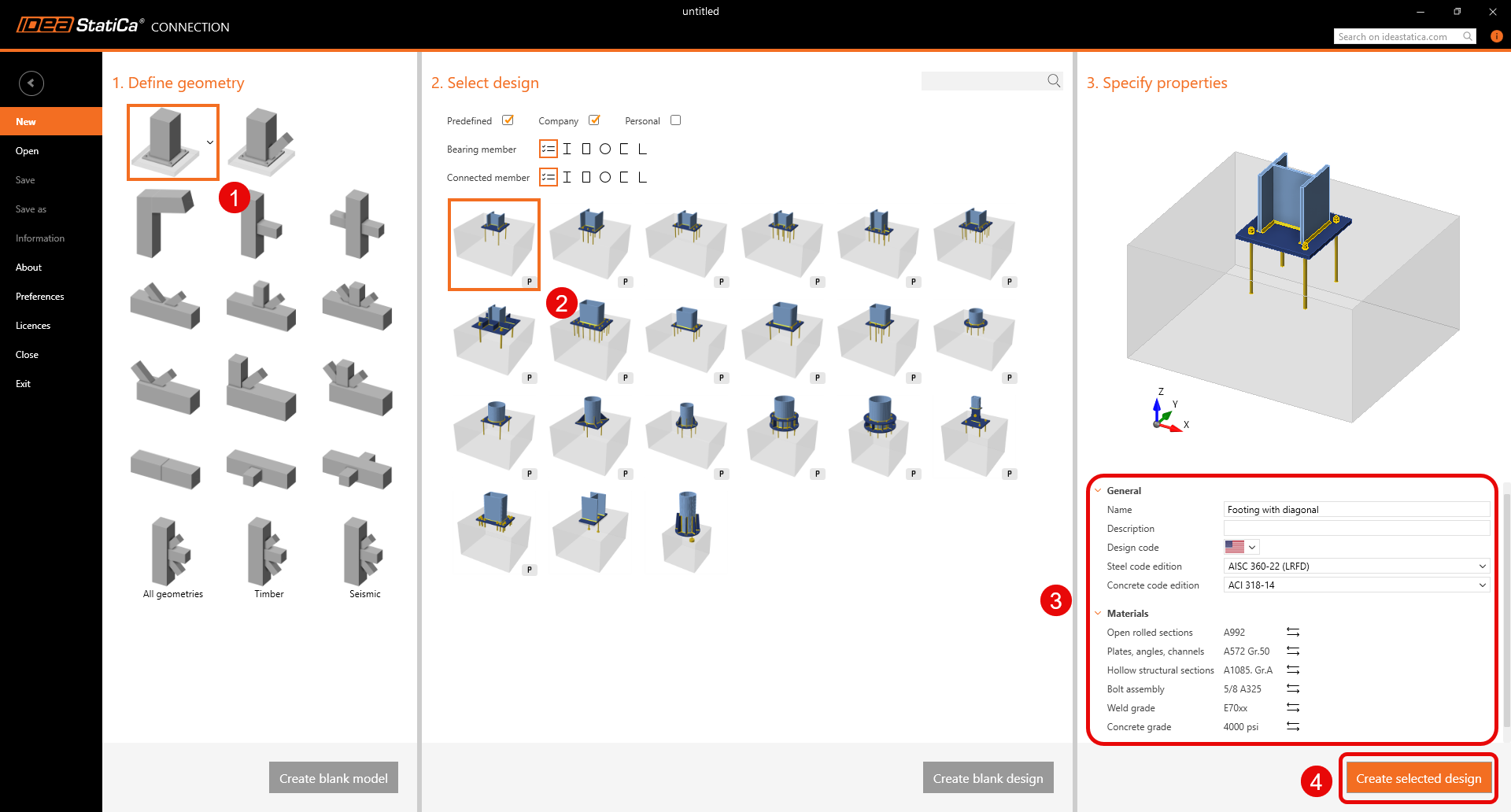
Let’s launch IDEA StatiCa and select application Connection. Create a new project by selecting a starting template closest to the desired design, filling in the name, and choosing the design code and default material properties – A992.
Since you work under the AISC code, set the imperial units (see How to change the system of units).

2 Geometry

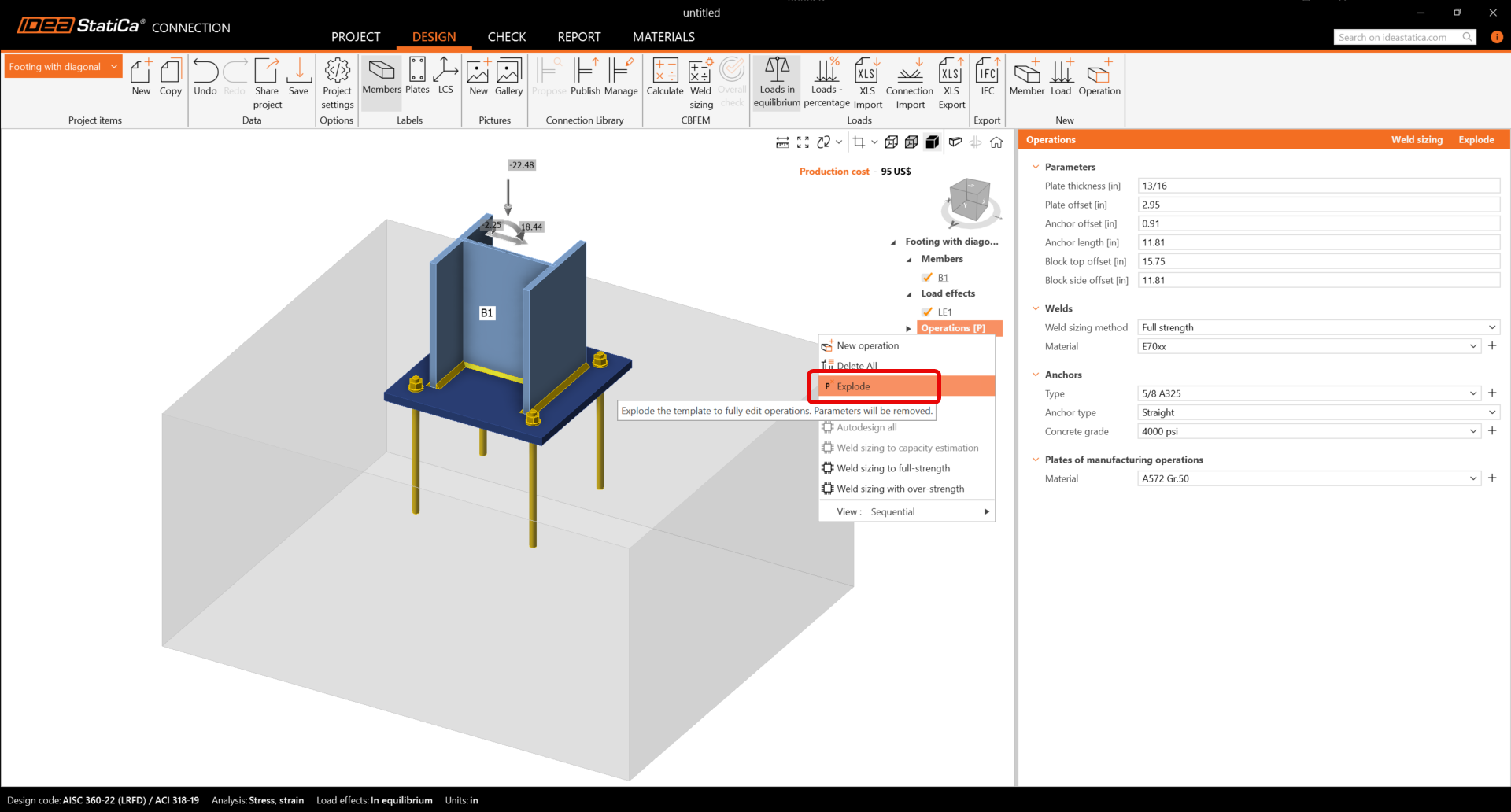
A column and a base plate with anchors were automatically added. Before continuing, make sure to explode the parametric template as shown below.
First, change the cross-section of the column.
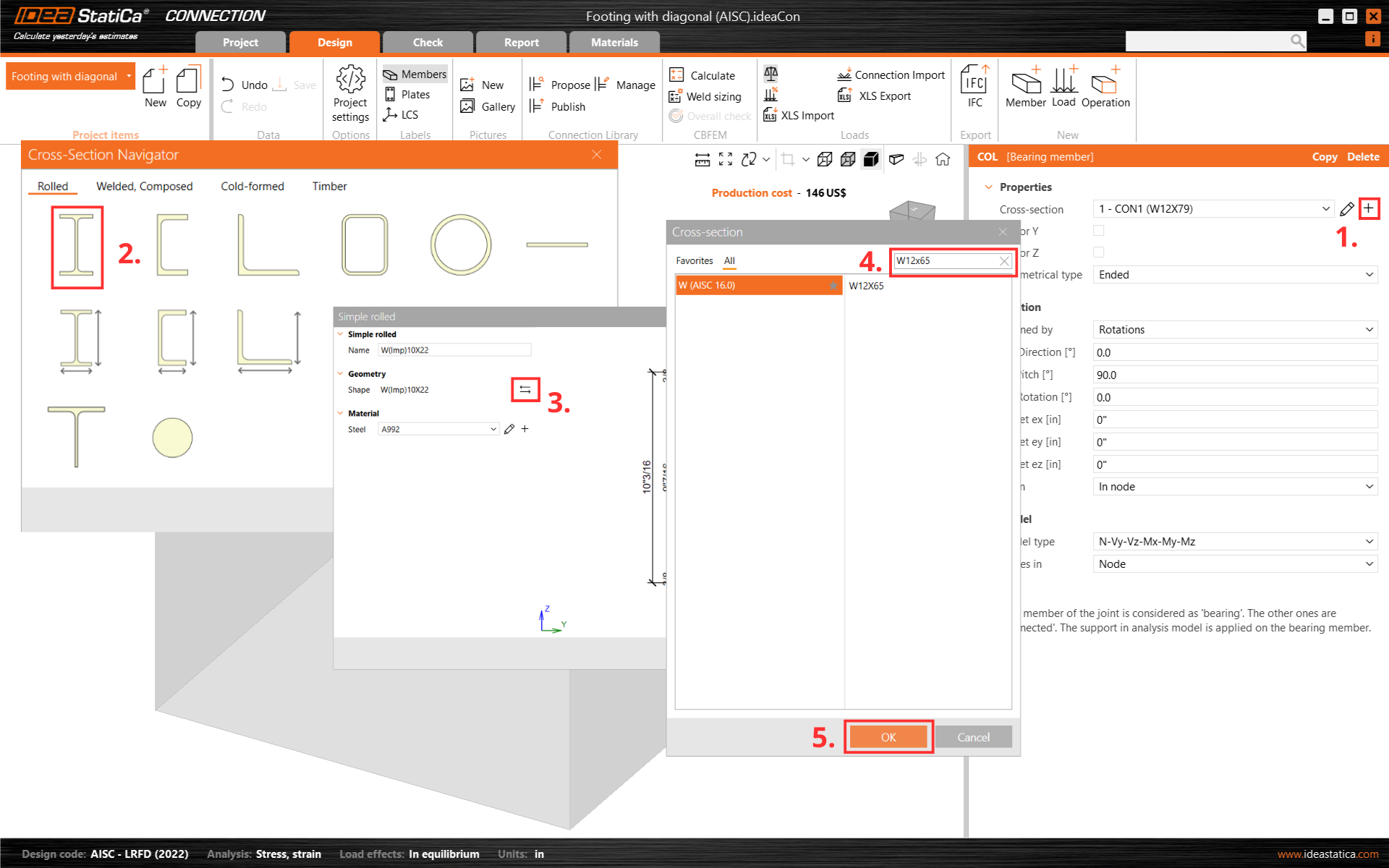
Wide flange profile selection

And modify its offset in ex direction.
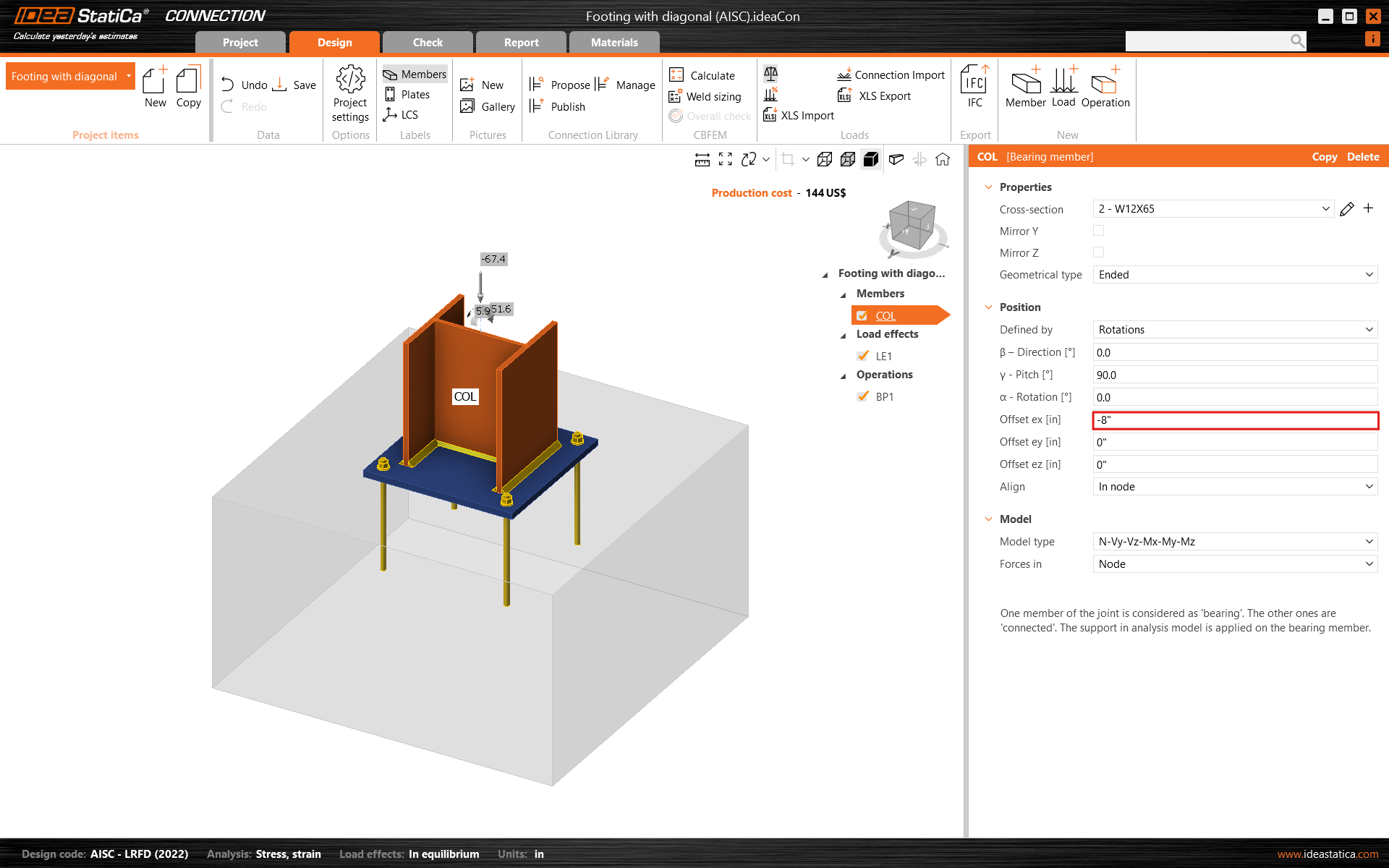
Offset modification in base plate

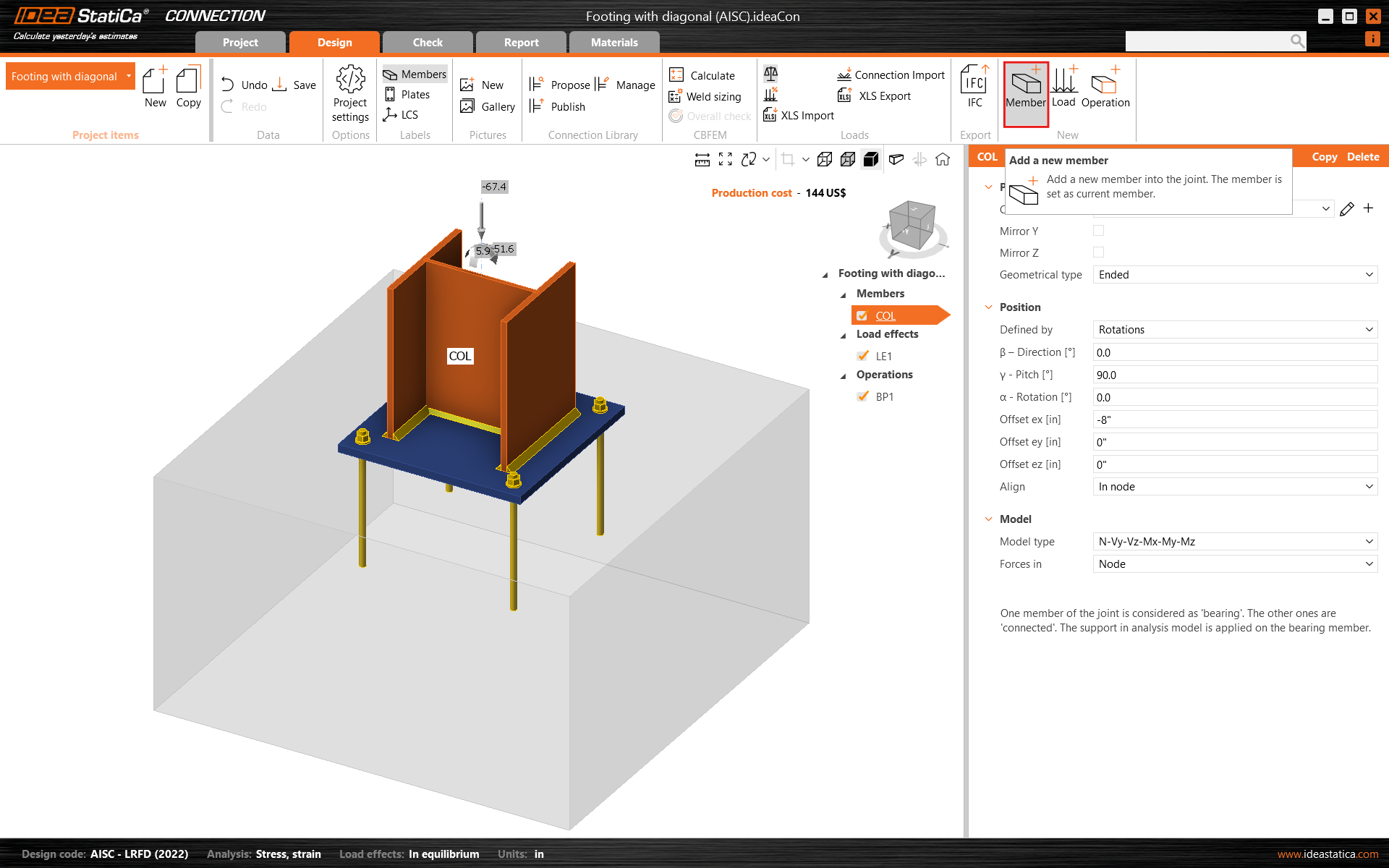
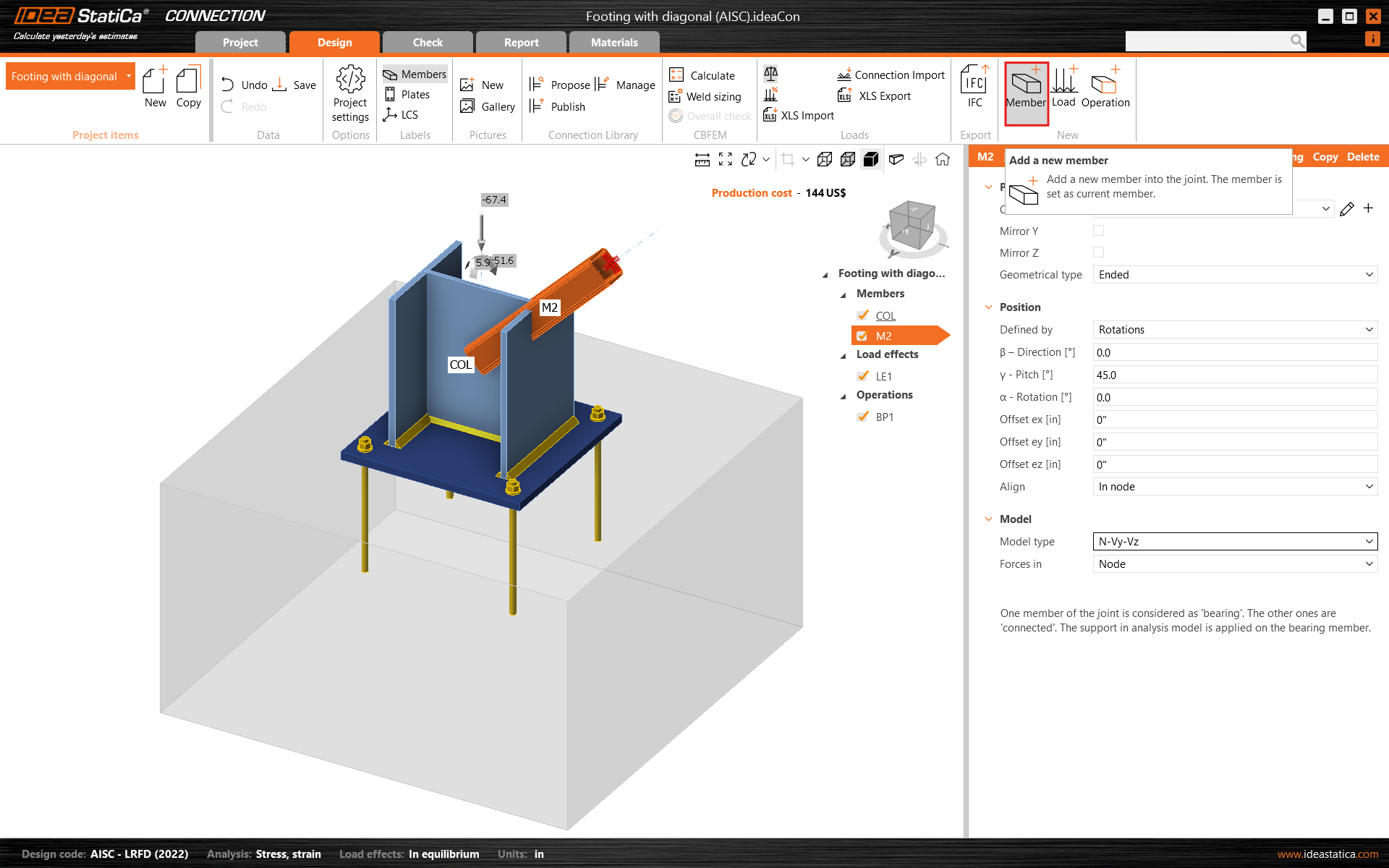
Then add a new member.

New member icon

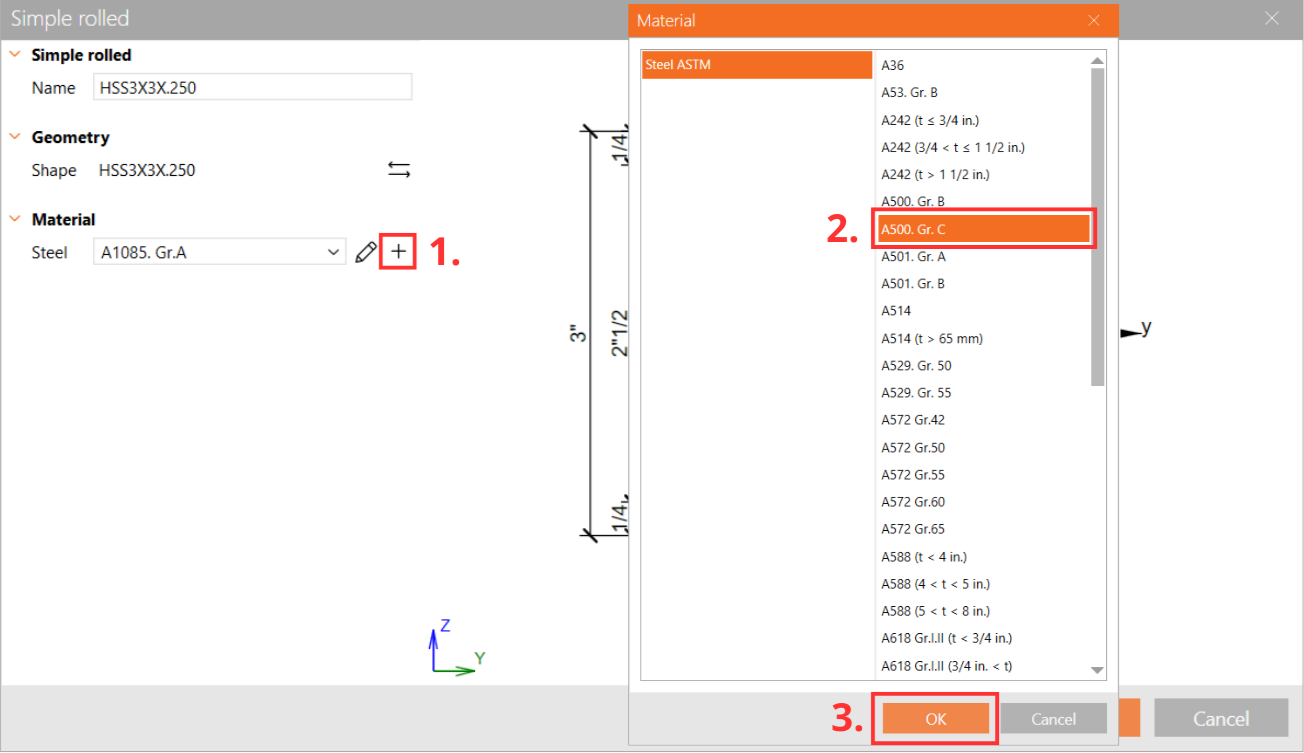
And change its cross-section to HSS3X3X1/4 and material to A500 Grade C shaped
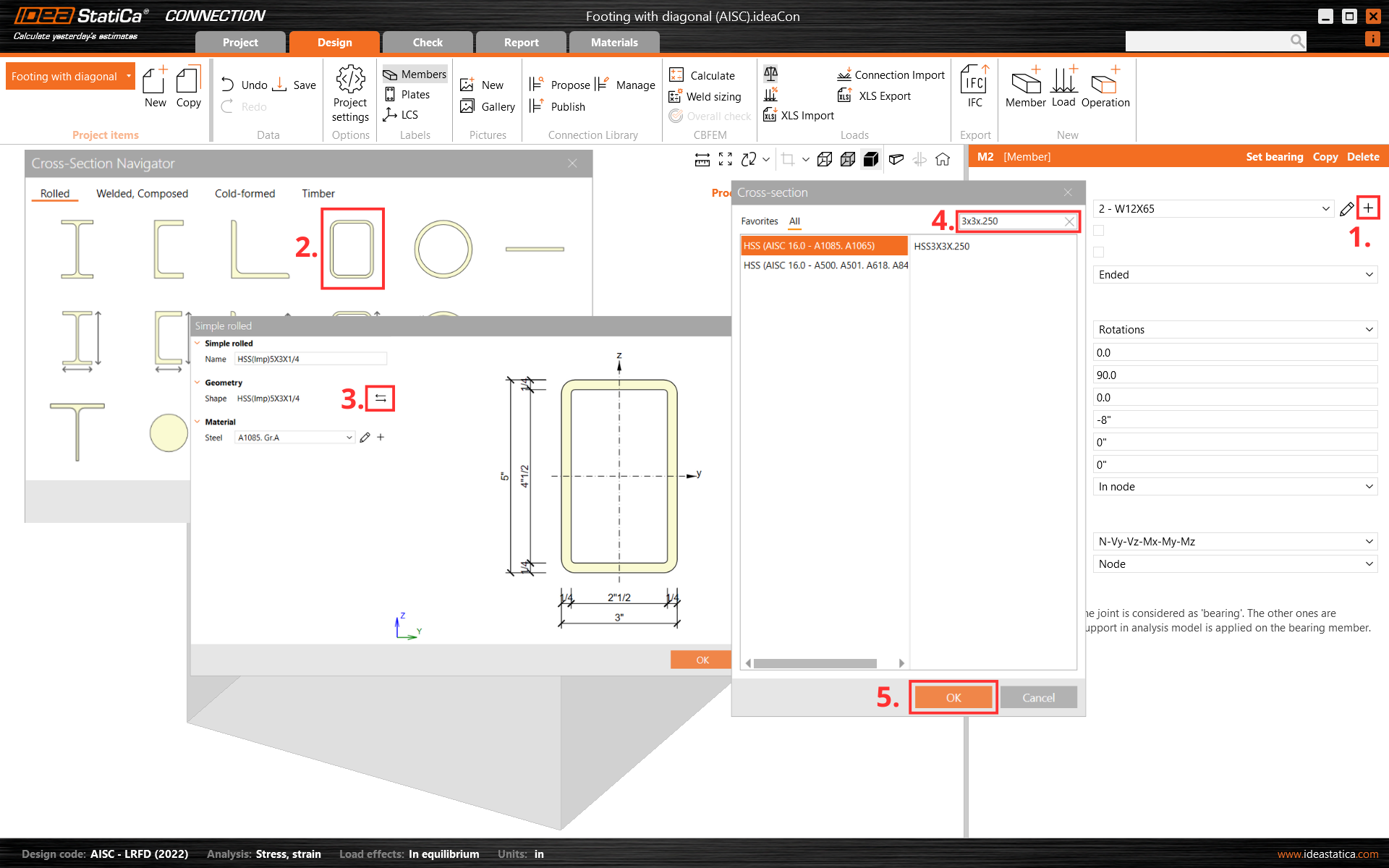
HSS profile selectionMaterial selection A500

Change the member pitch angle and set the model type to N-Vy-Vz since this member will act in tension/compression only as a pinned bracing diagonal.
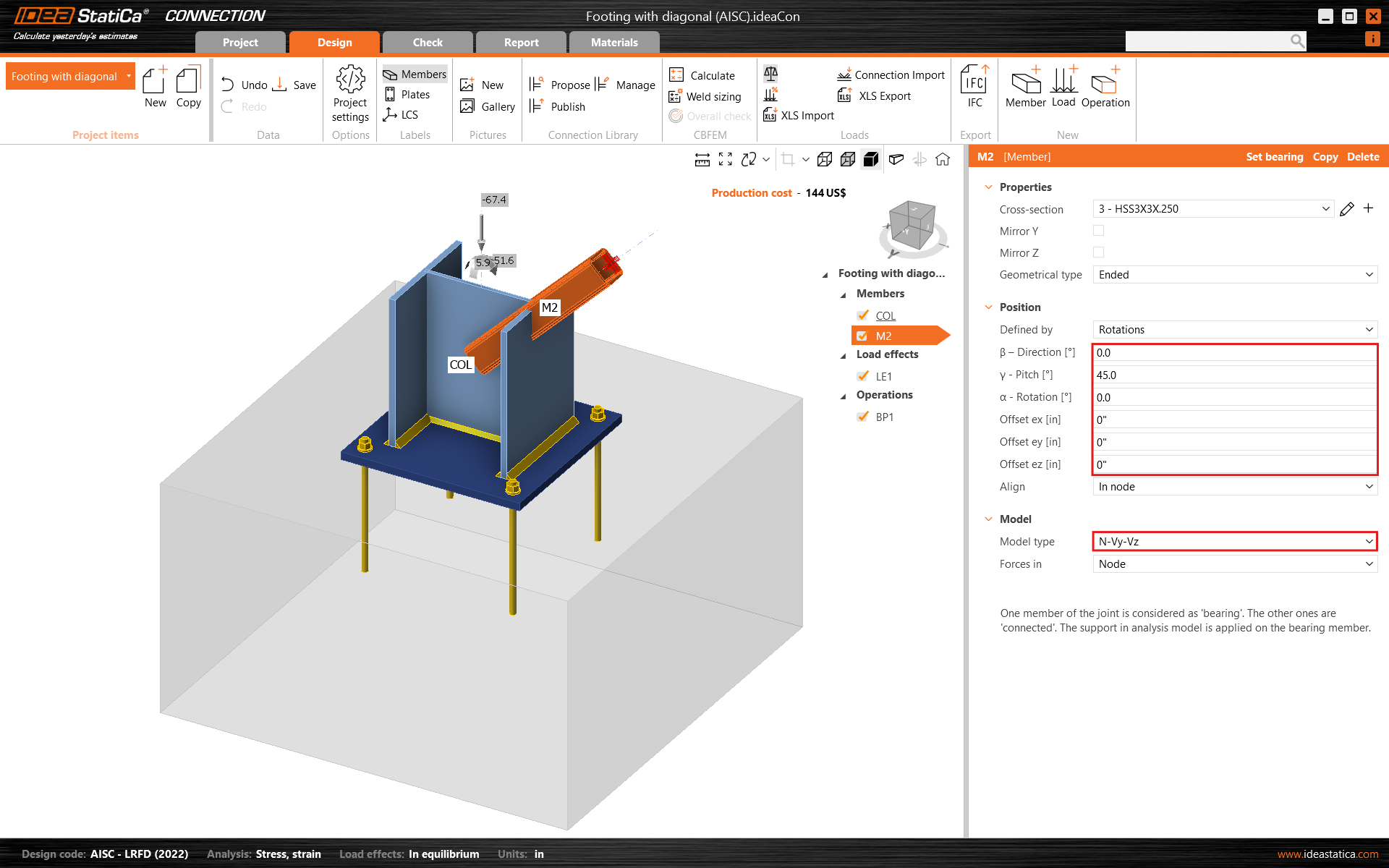
Bracing member properties

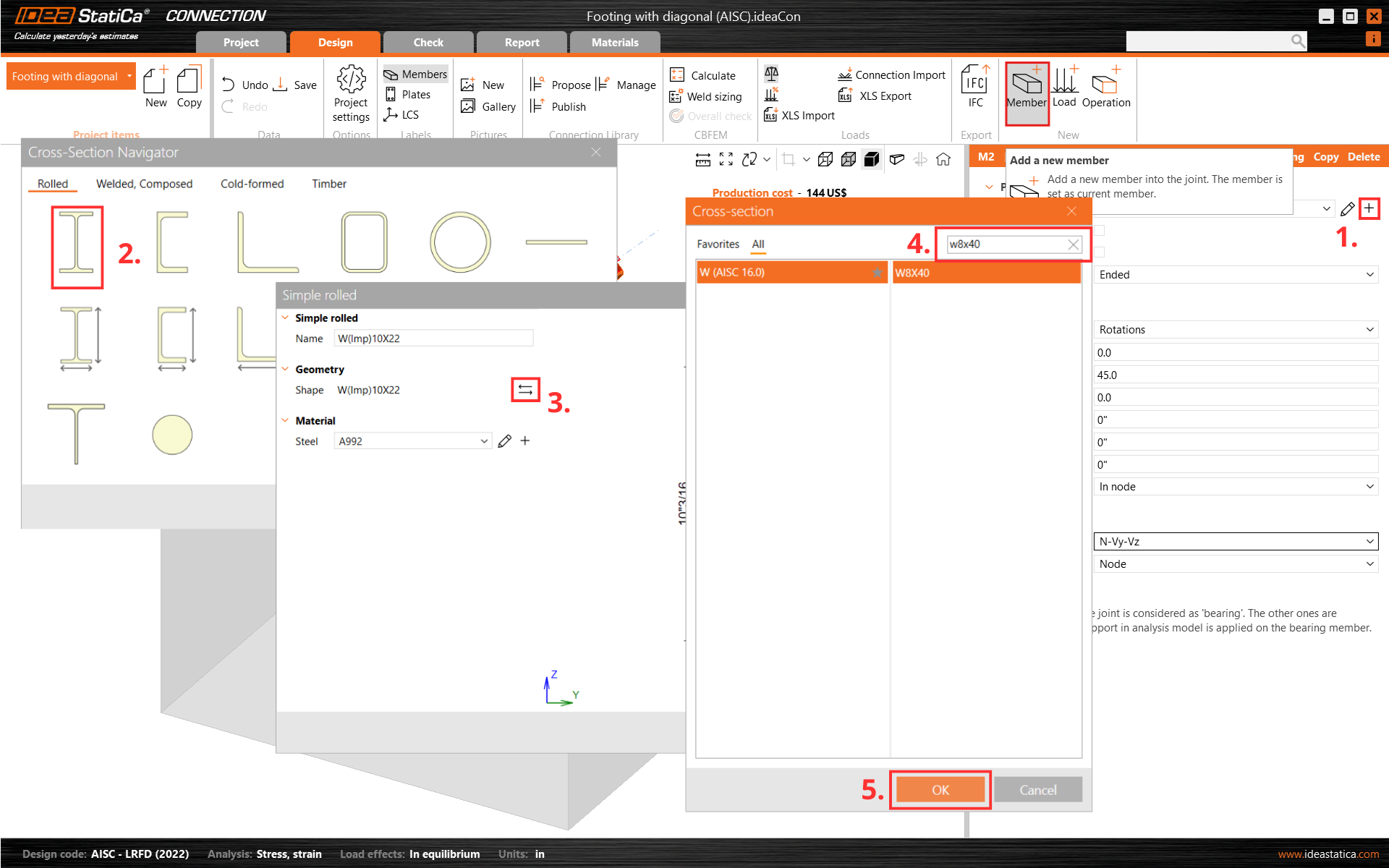
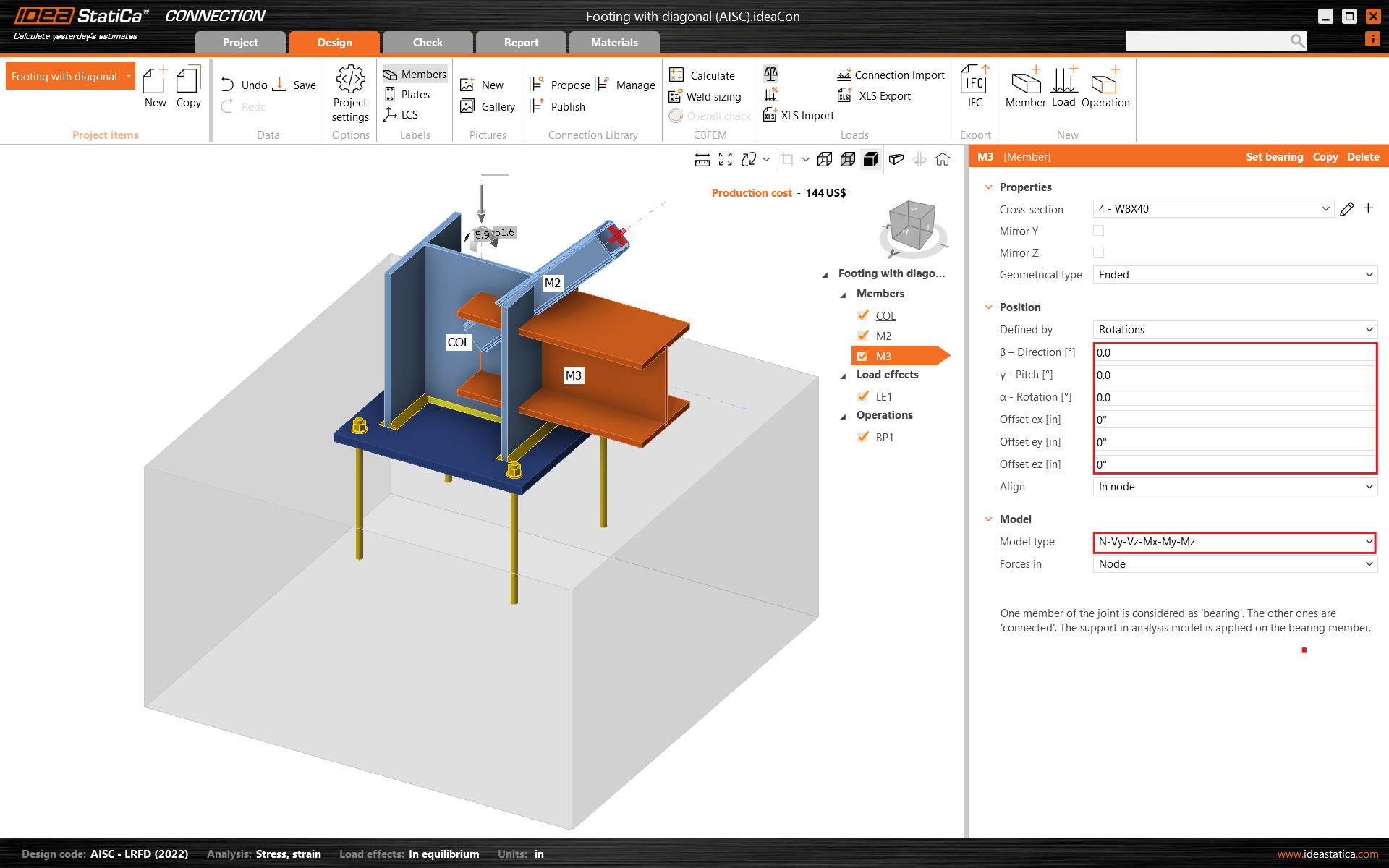
Add another member, change its cross-section to W8X40, and modify its properties.
Add new steel memberModification and selection of profile sectionModify properties of wide flange member

Check the geometry of all added members.
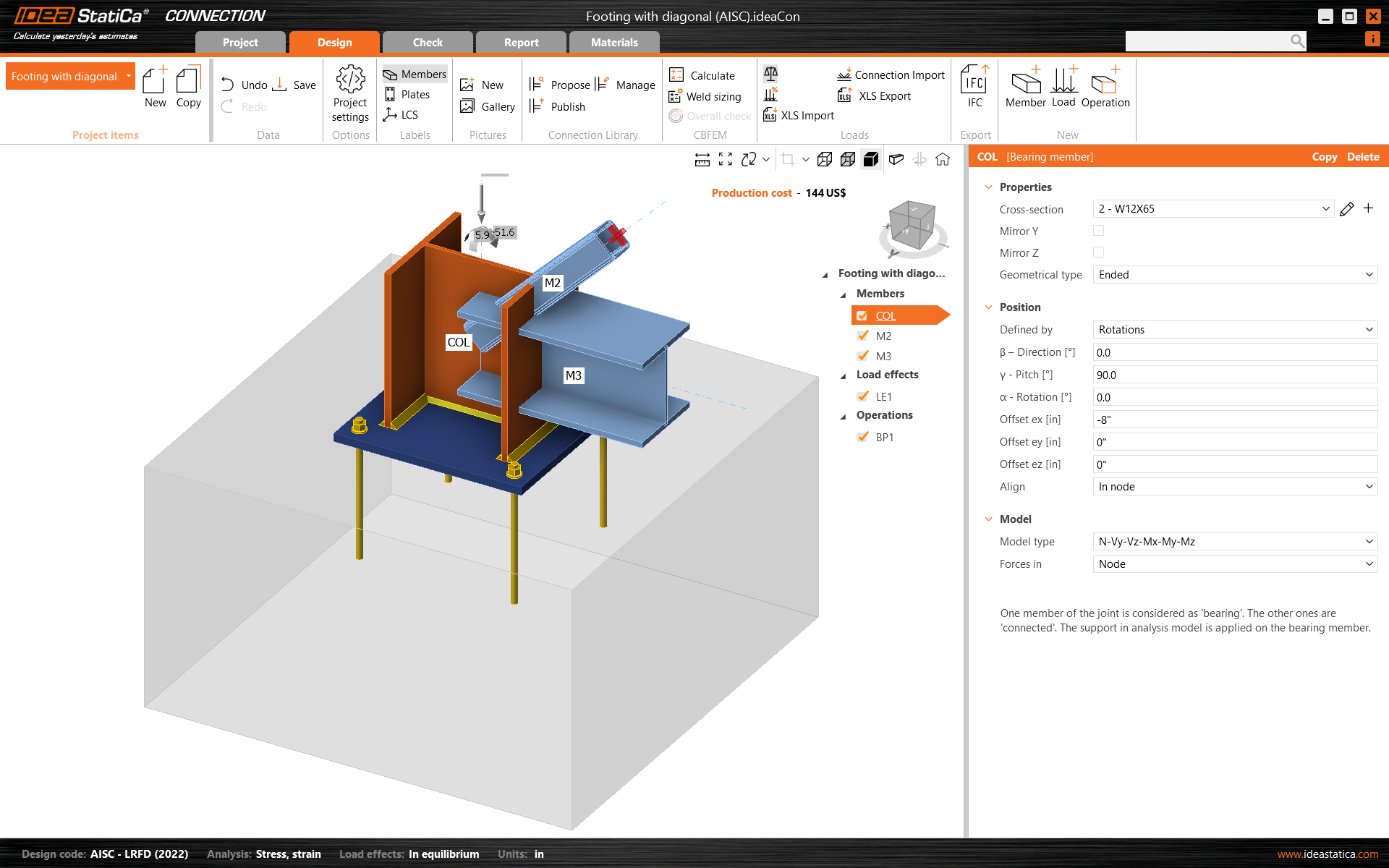
Review of steel members

3 Load effects

One load effect was automatically added. Input the values of internal forces into the chart. More load cases can be added.
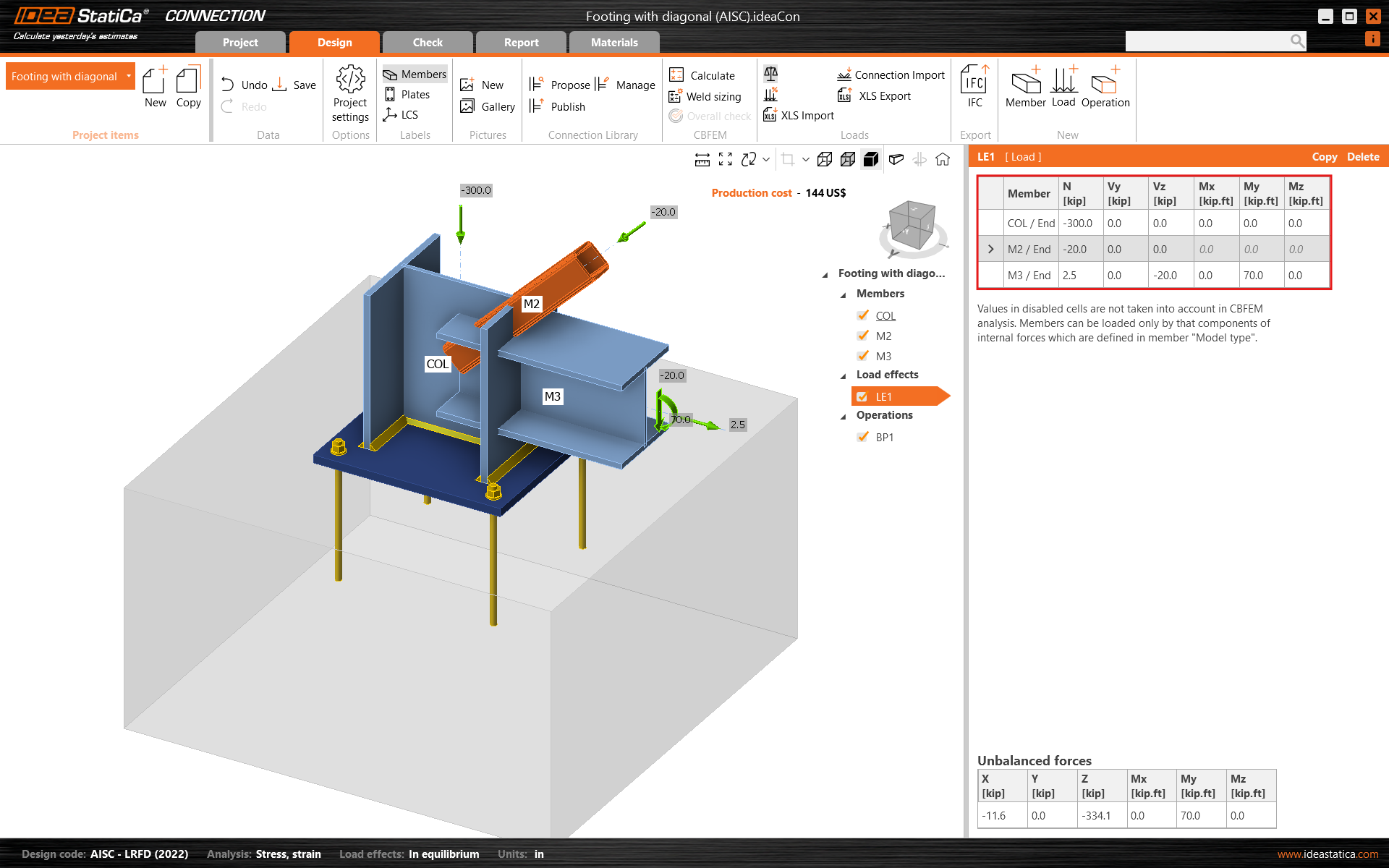
Load effects

4 Design

The manufacturing operation Base plate was already added. Just update some of its properties.
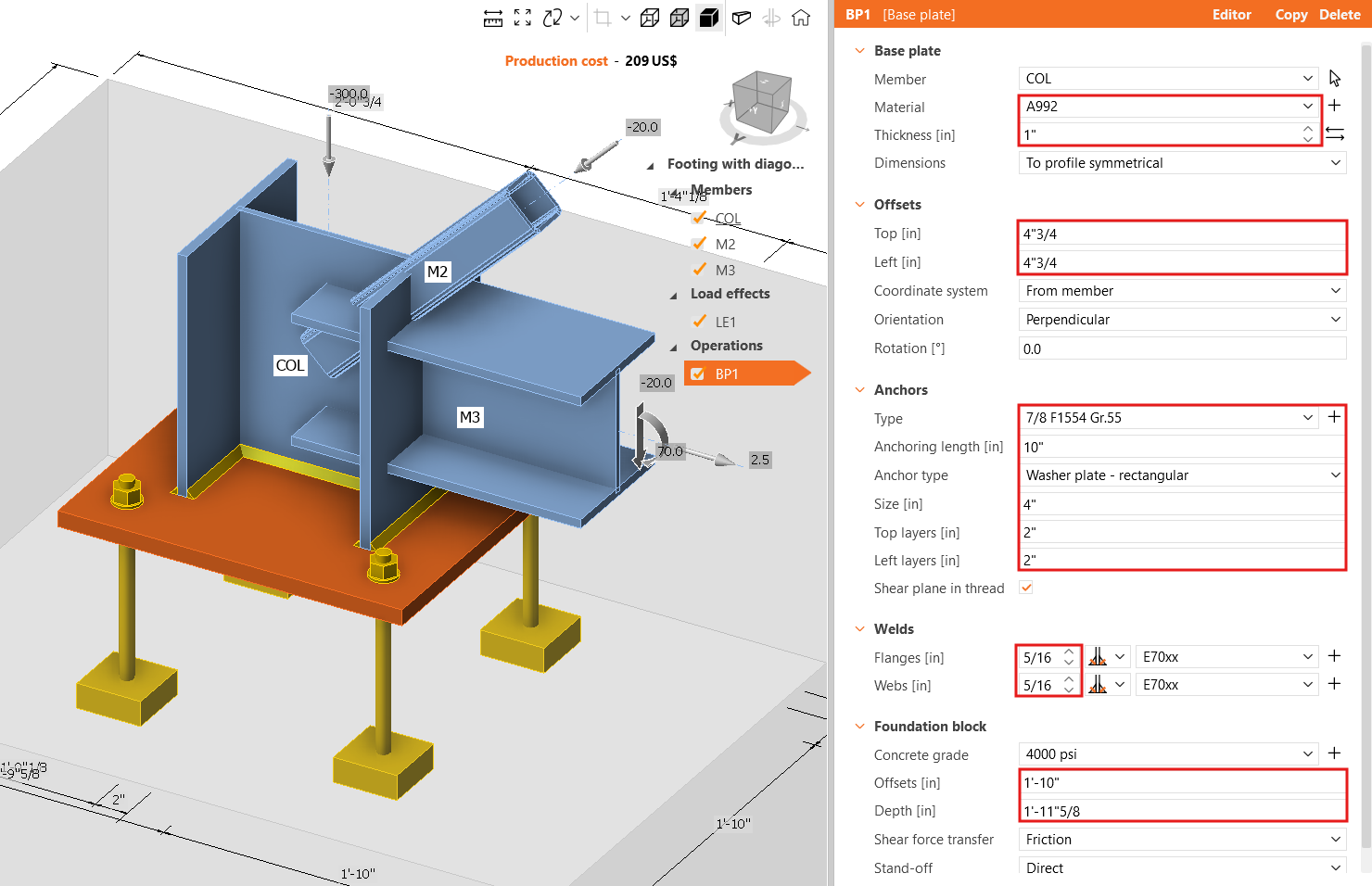
Base plate operation properties

Go on and add another manufacturing operation and select the End Plate.
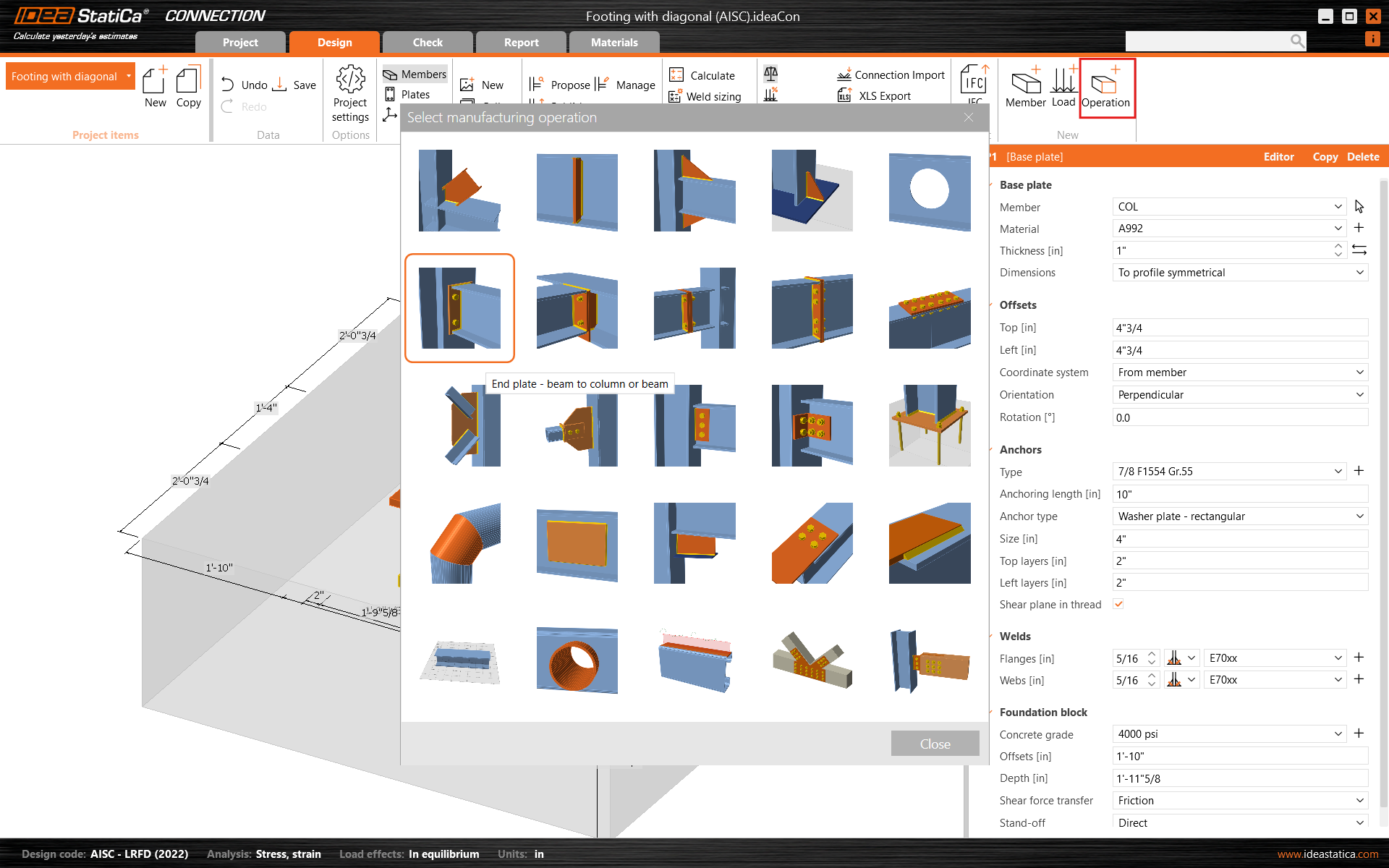
New end plate operation

Modify the properties of the operation EP1.
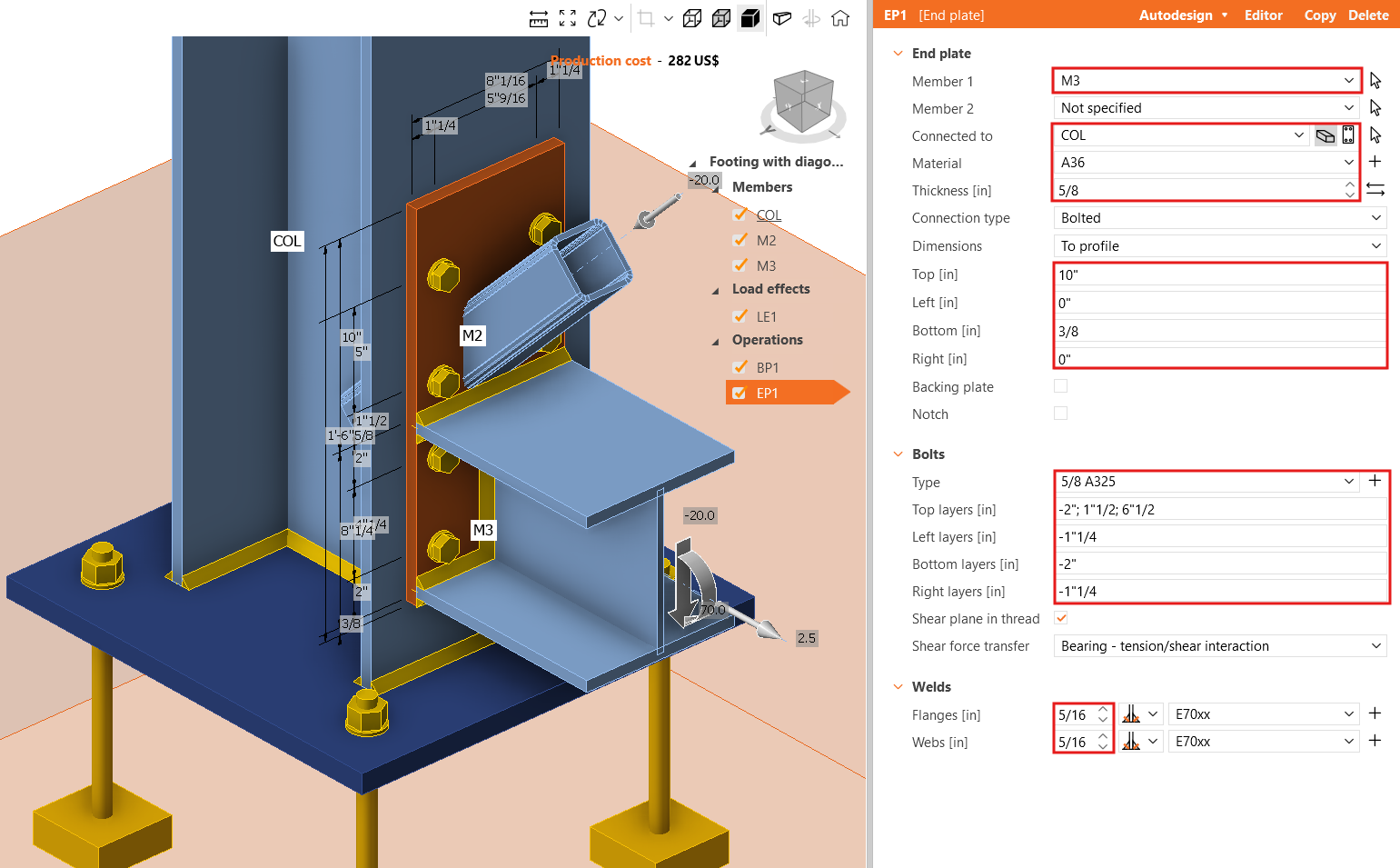
End plate properties

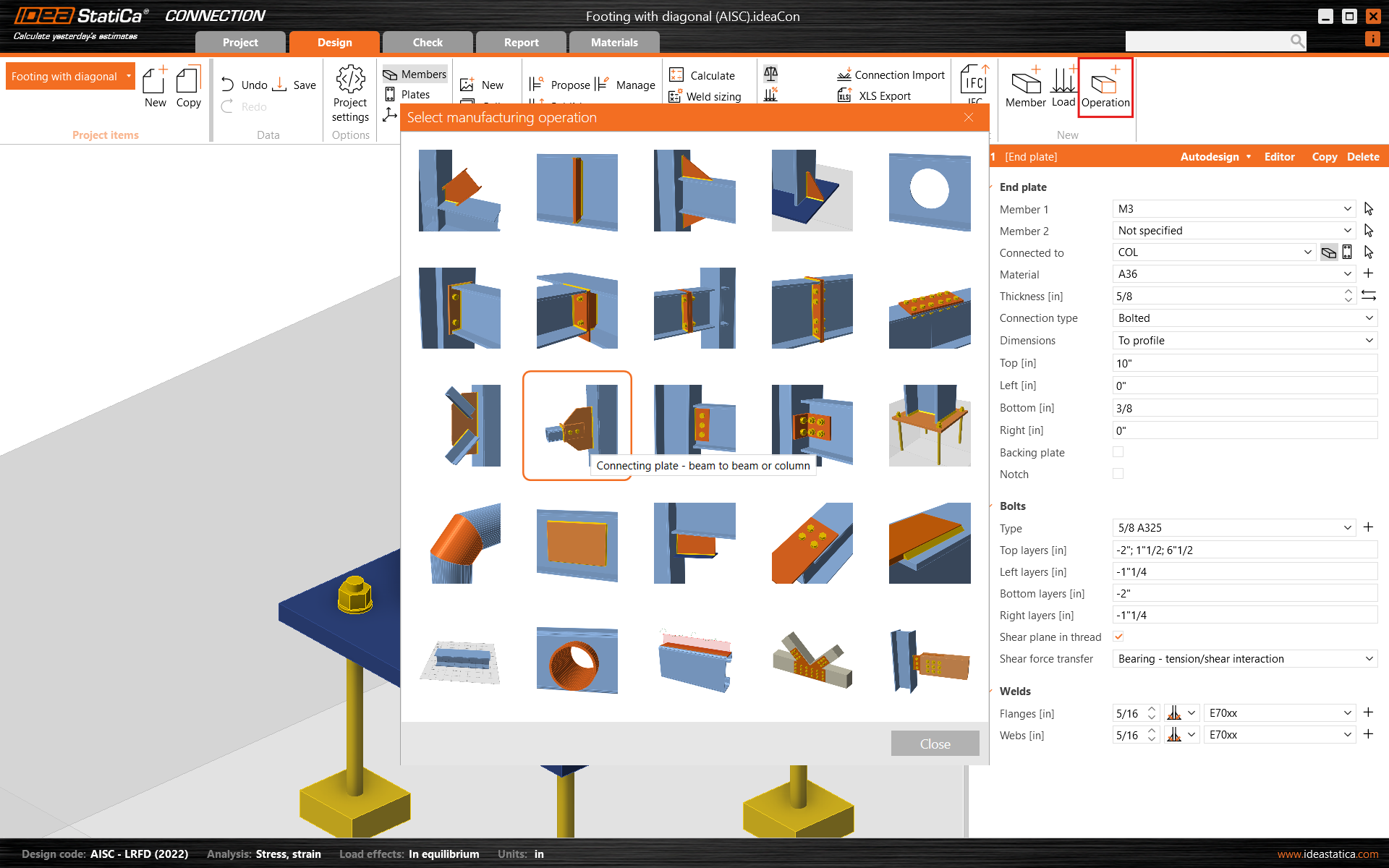
Now, add the Connecting Plate.

Connecting plate operation

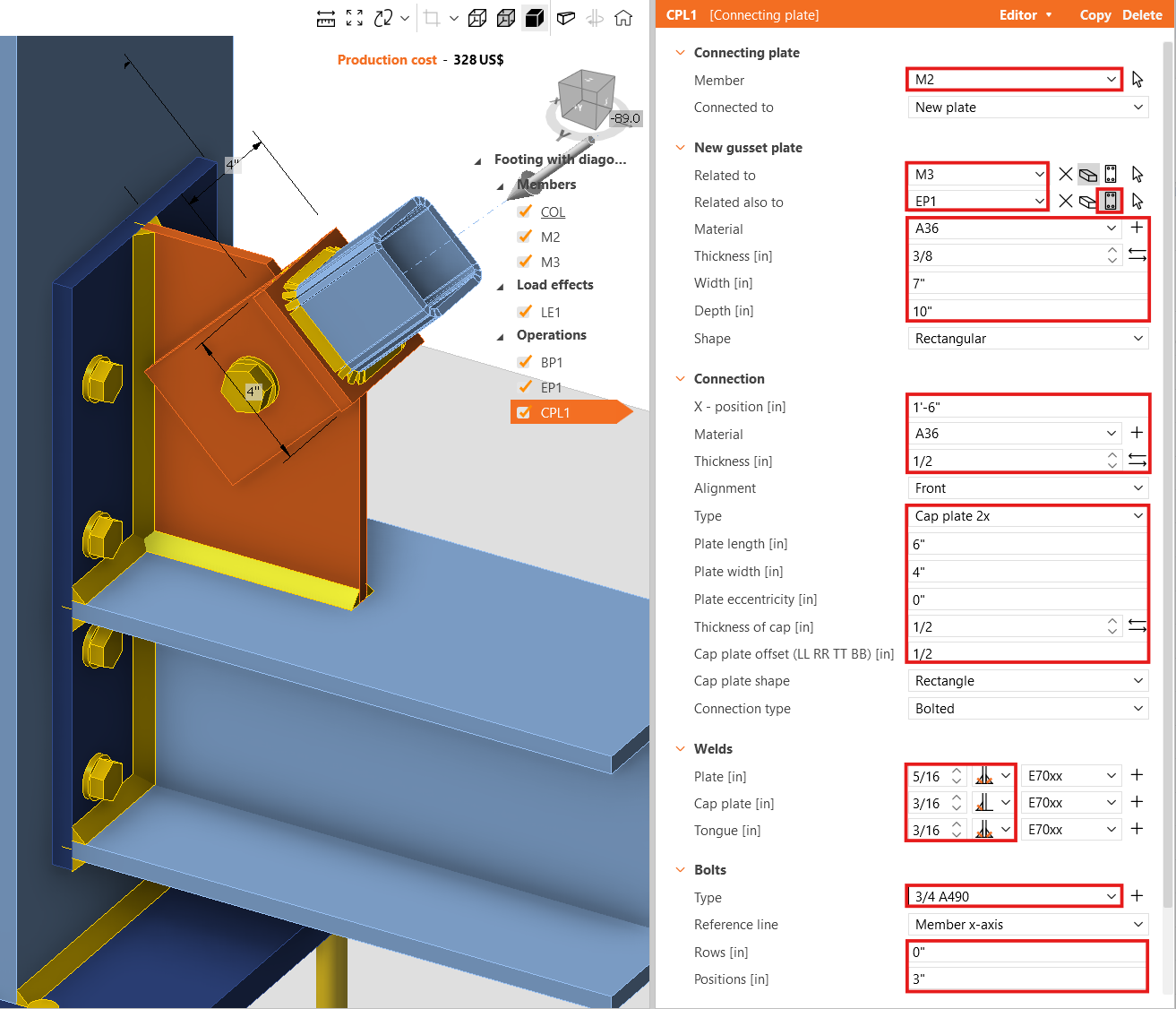
And redefine its properties.

Connecting plate operation details

Next, cut one corner of the connecting plate CPL1. For this, go to the Editor - Gusset plate and create a Chamfer at corner number 2.
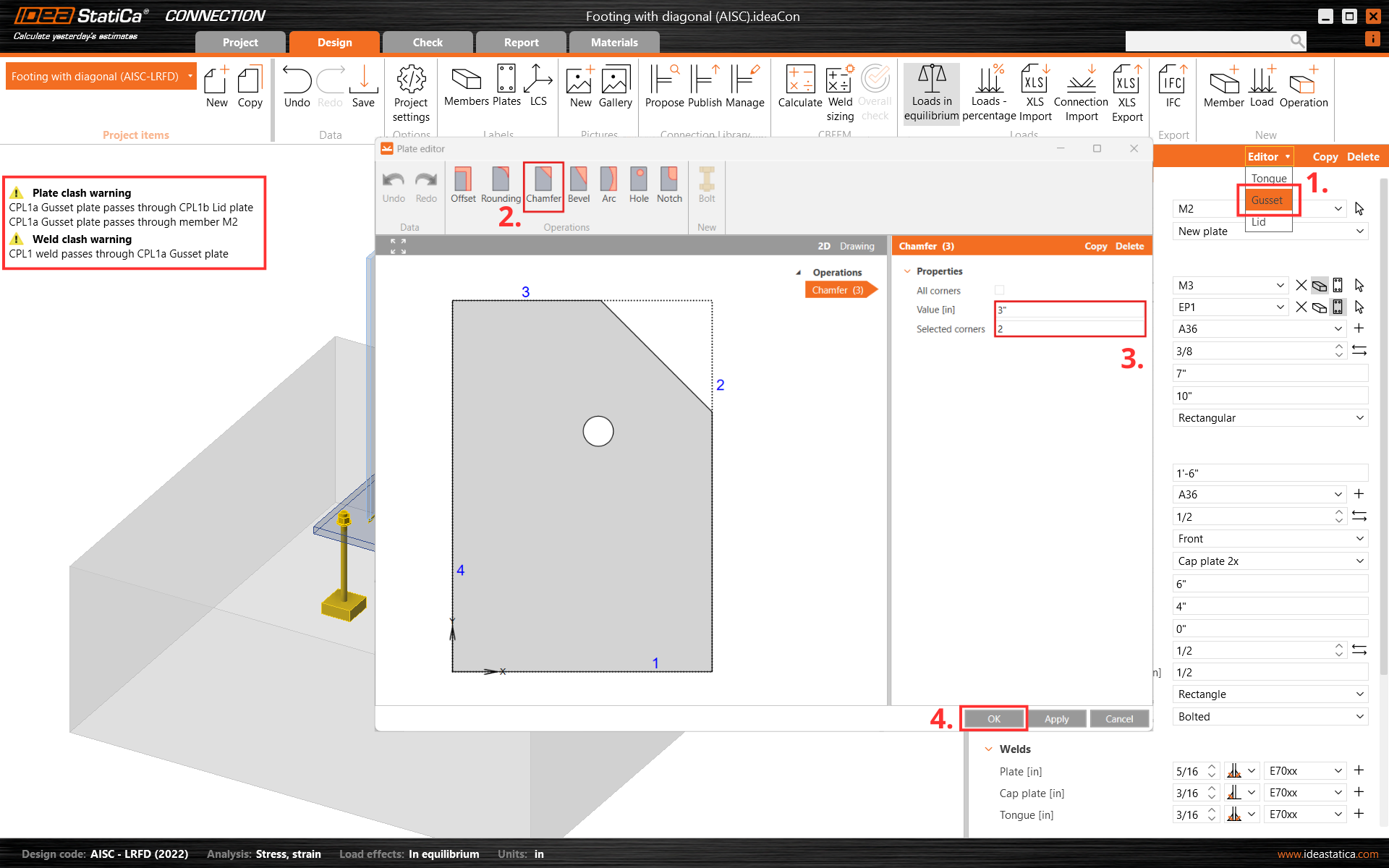
Connecting plate editor

Finish the design with the operation Stiffener.
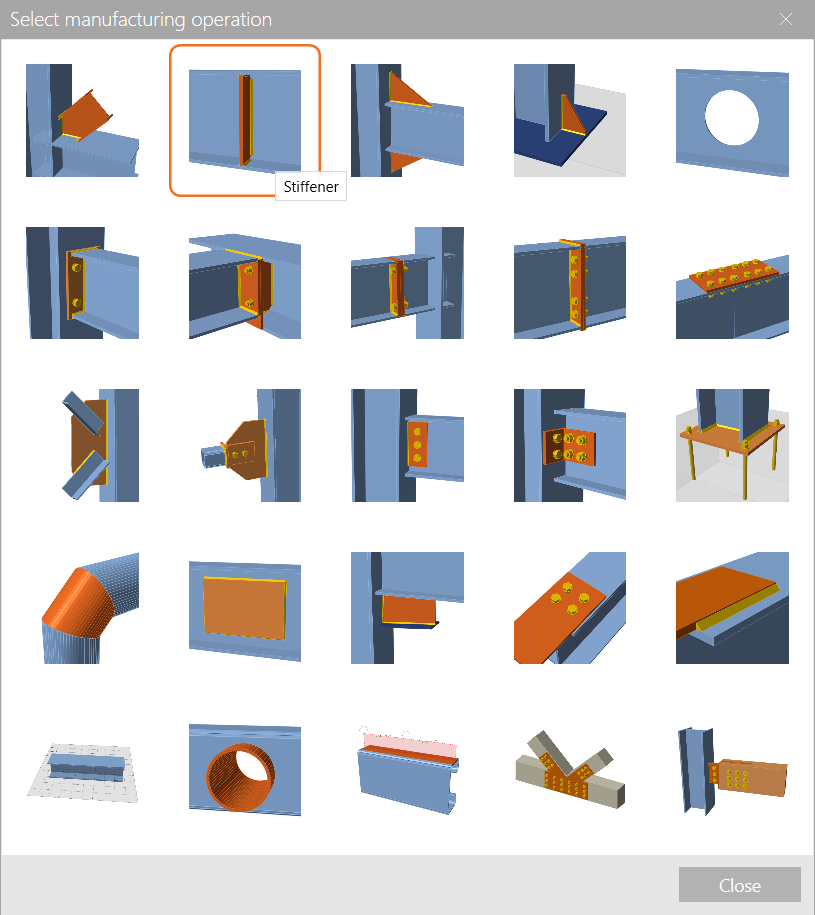
New stiffener operation

And set the correct properties of STIFF1.
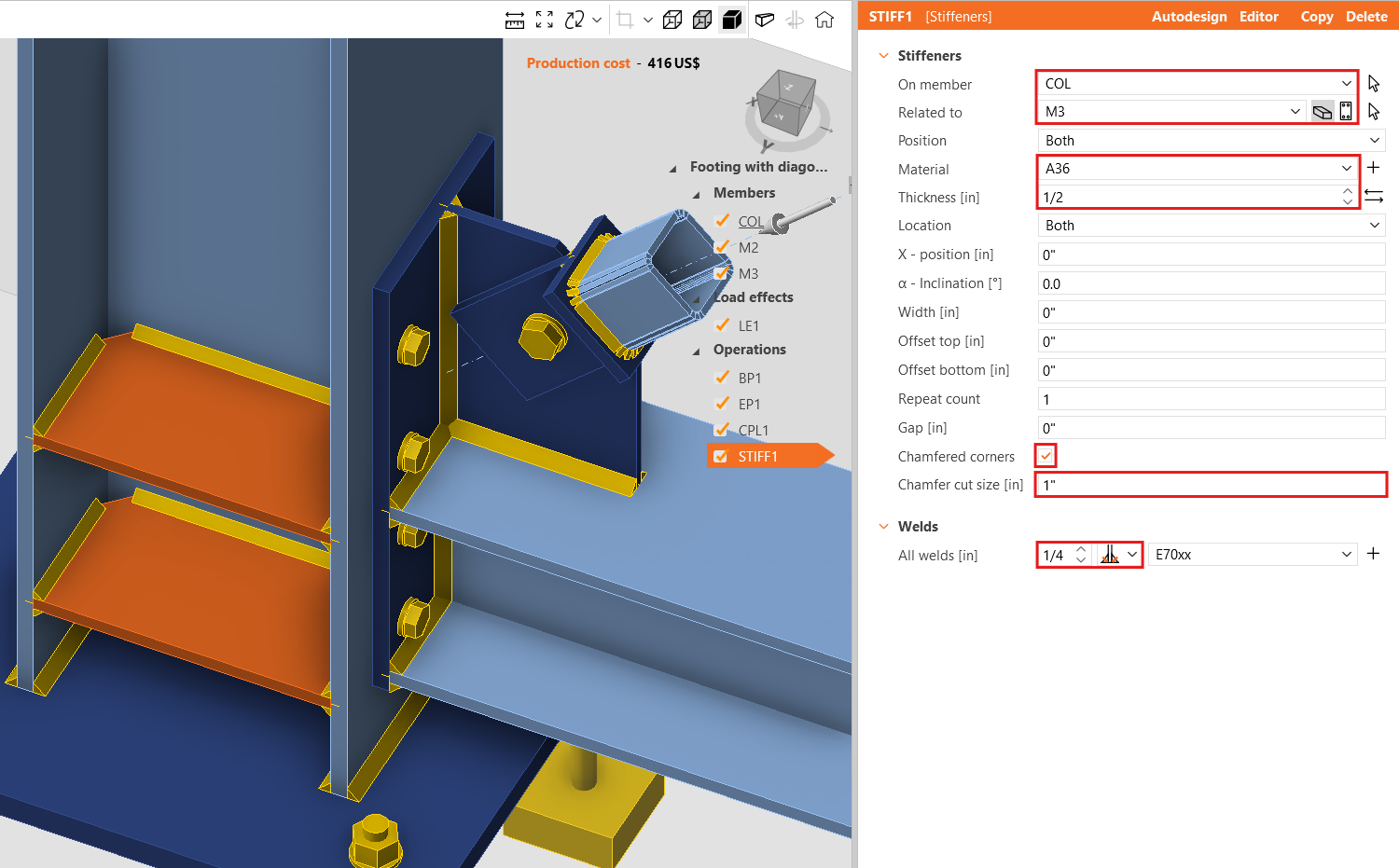
Stiffener operation

Let’s check the final design of the joint.
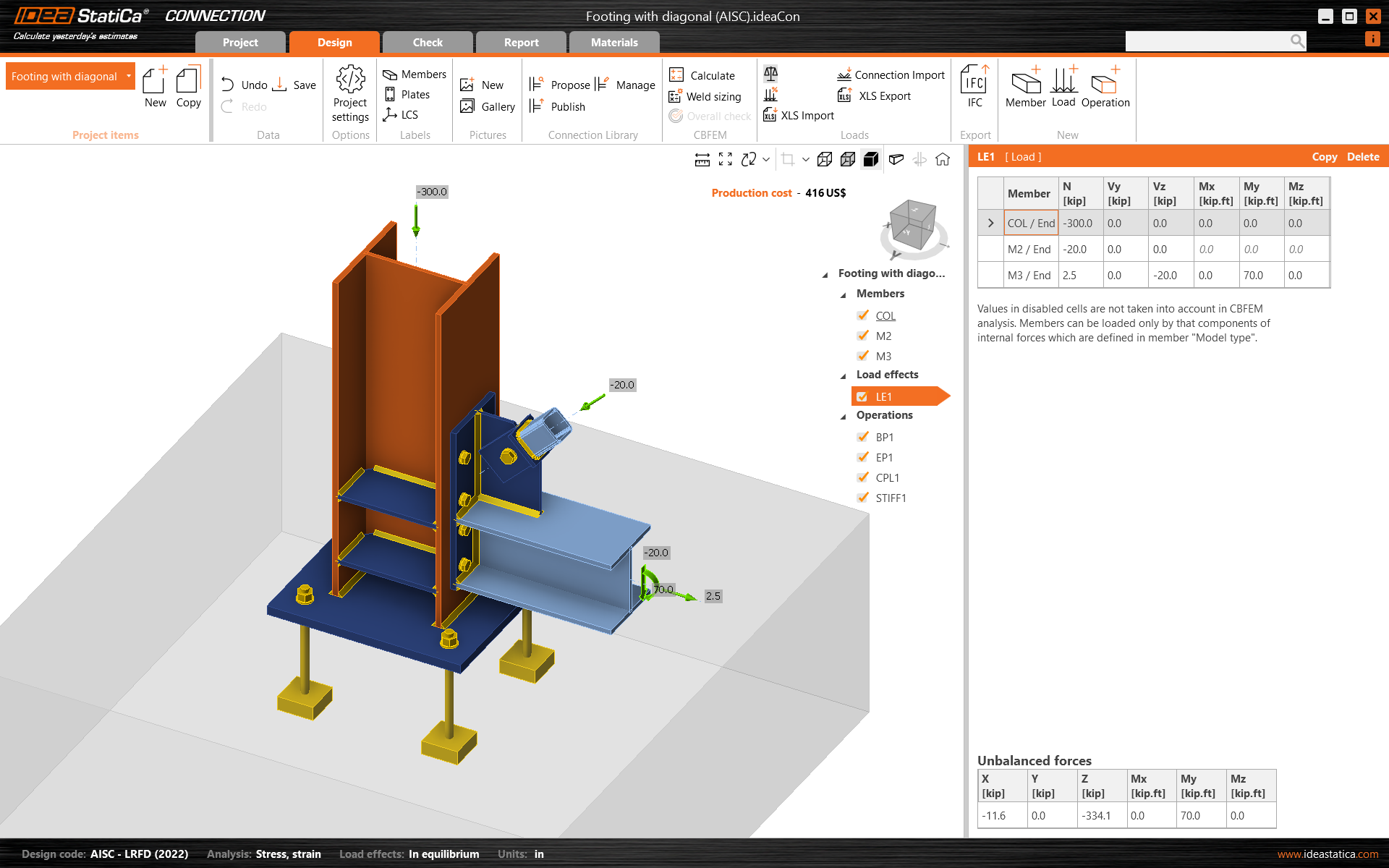
Final base plate model

5 Calculation and Check

Start the analysis by clicking Calculate in the ribbon. The analysis model is automatically generated, the calculation based on CBFEM is performed, and we can see the Overall check displayed together with the fundamental values of check results.
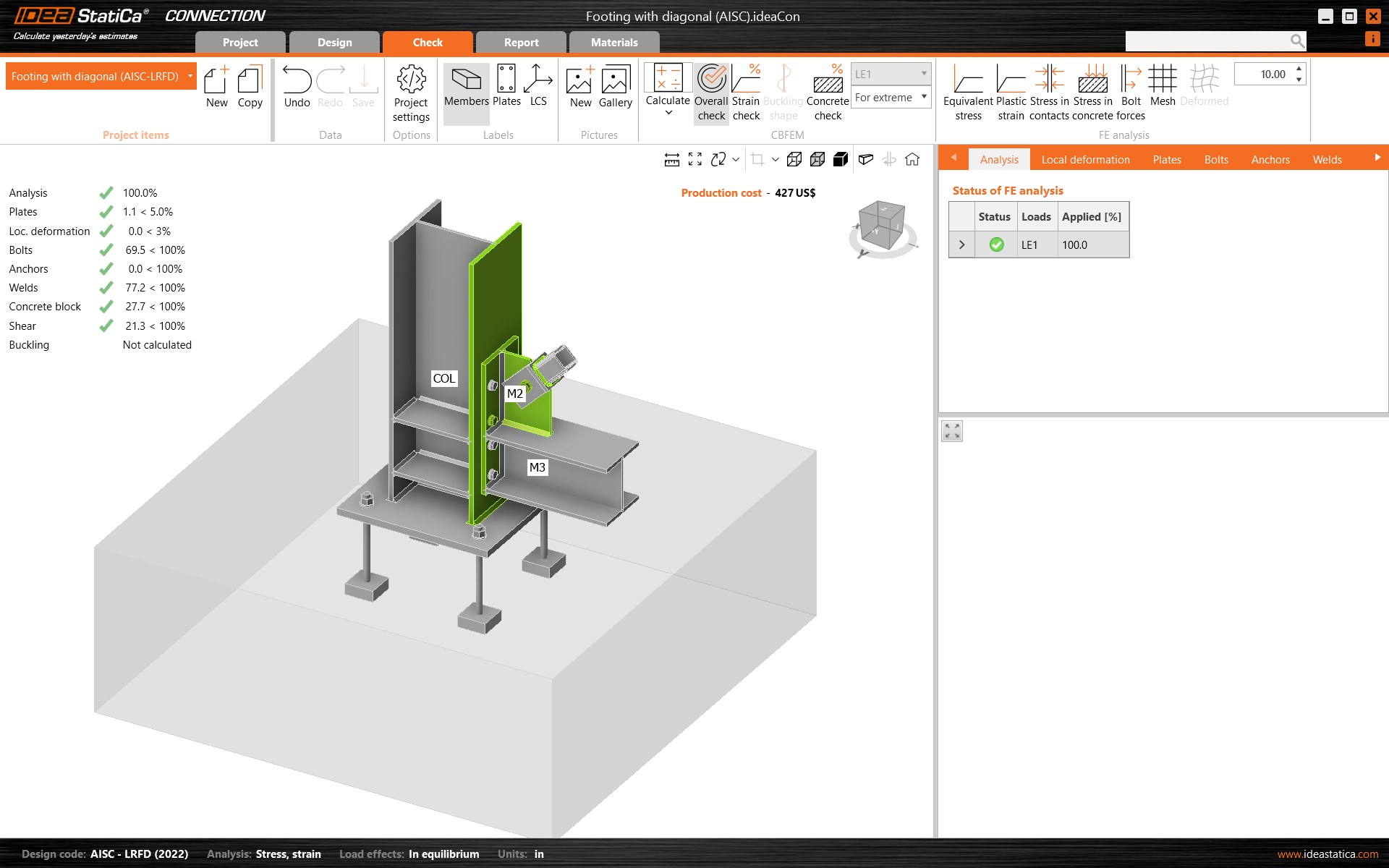
Calculate and overall results

Go to the display tab Check, and activate Stress in concrete and Mesh from the ribbon to get a complete picture of what is happening in the joint. Open the tab Concrete block to see the detailed results for this item.
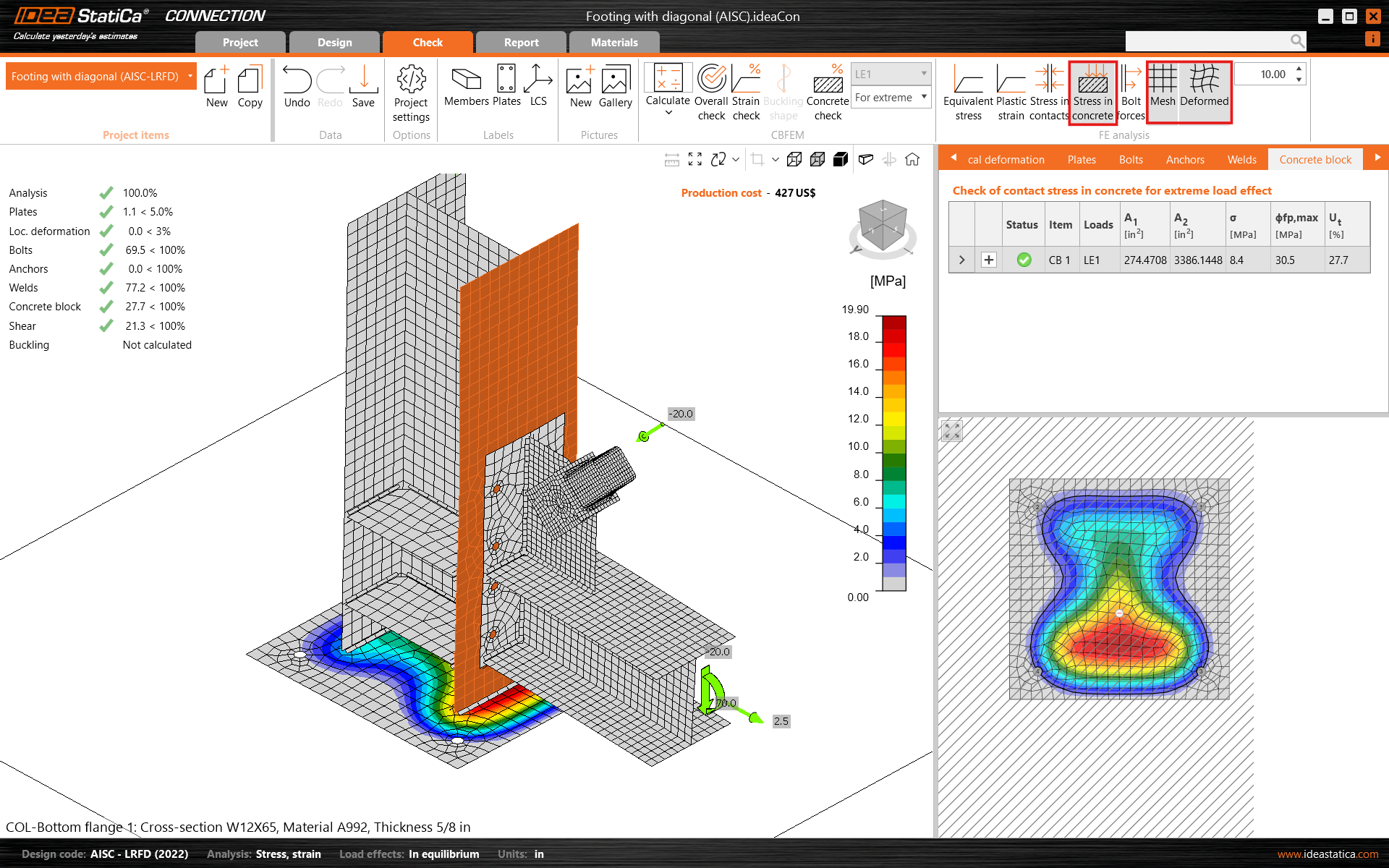
Stress in concrete

6 Report

At last, go to the tab Report. IDEA StatiCa offers a fully customizable report to print out or save in an editable format.
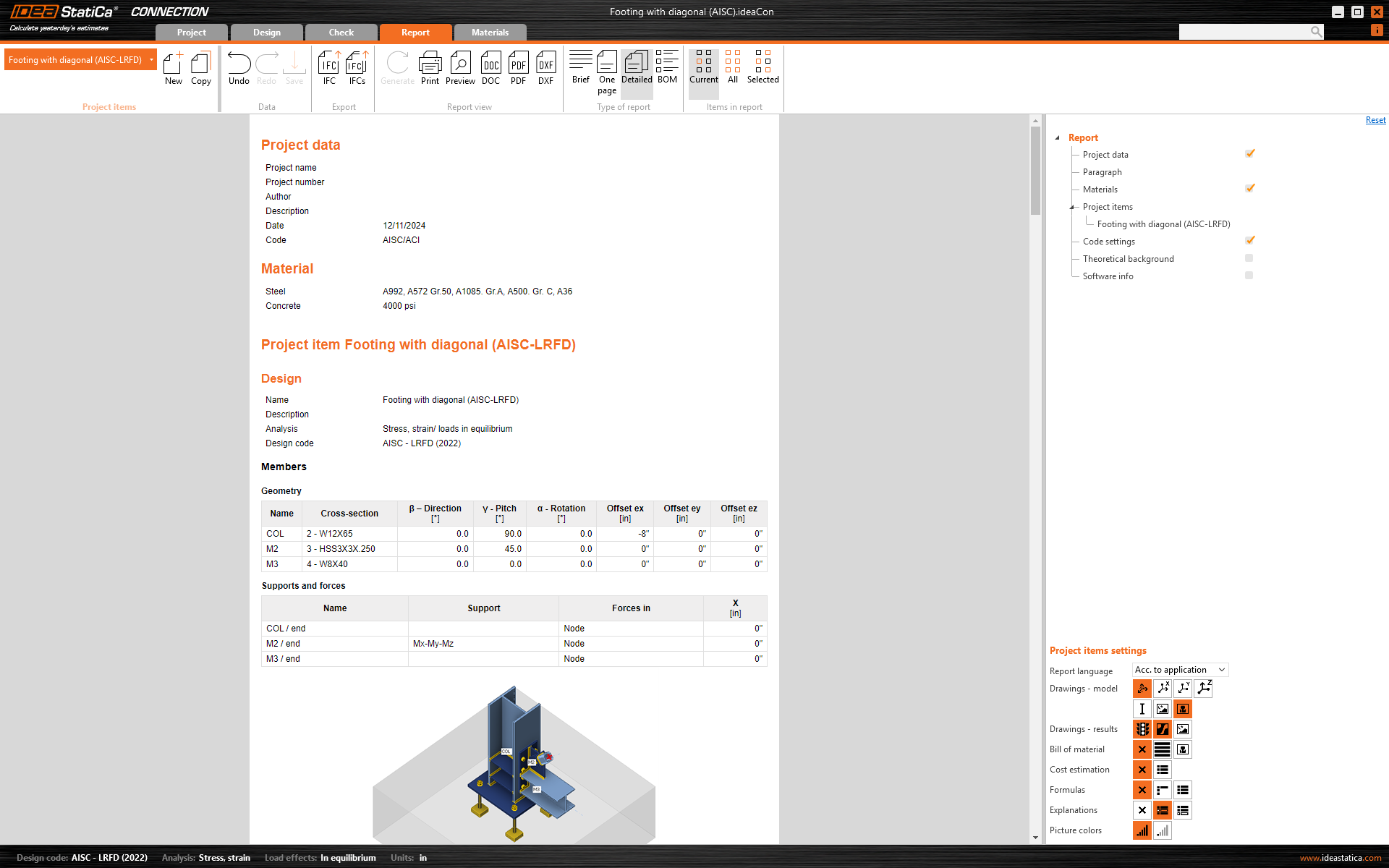
Report generation and details

You have designed, optimized, and code-checked a structural steel joint according to AISC.

Open in ViewerDownload

Learn how to use IDEA StatiCa effectively with our self-paced e-learning courses

Start learning
RELATED CONTENT

How to model footing with connecting plate
  • Connection design
  • Steel
  • Knowledge base

How to model footing with connecting plate

Read more
Summer Series - Footing connections quick & easy
  • Connection design
  • Steel
  • Webinar

Summer Series - Footing connections quick & easy

Read more
  • Connection design
  • Steel
  • Webinar

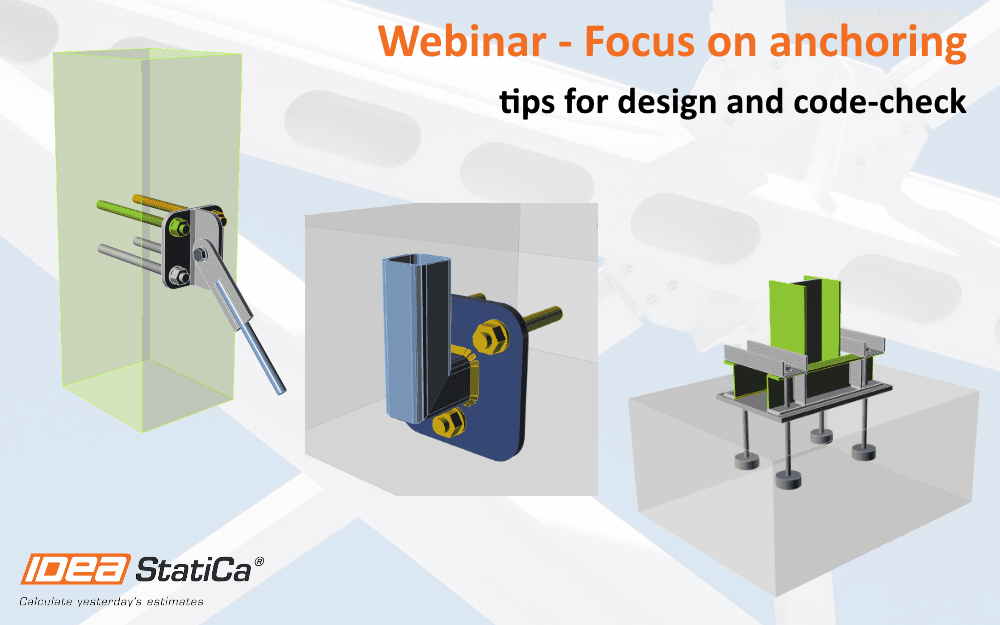
Connection Wednesdays – Focus on anchoring

Read more
Explore all

Subscribe to our newsletter

Company

  • About us
  • Partnerships
  • Job openings
  • Patented technology for structural engineers

Resources

  • Customer projects
  • Case studies
  • IDEA StatiCa Connection Library
  • Concrete verifications

Legal

  • IDEA StatiCa END USER LICENSE AGREEMENT
  • Privacy policy
  • Terms of Services – IDEA StatiCa Viewer
  • Licensing

Help

  • Contact
  • Get price quote
  • IDEA StatiCa Specialists
  • Download the latest version
FacebookInstagramLinkedInYouTube

© IDEA StatiCa 2009-2026

Trusted and used worldwide by engineers, fabricators & consultants.